MSFS 2024 · 配信中

Microsoft Flight Simulator リモートヨーク

iPhone を手に取れば、それがそのまま Microsoft Flight Simulator 2024 のワイヤレスリモートヨークに。傾けるだけであらゆる機体をバンク・ピッチ操作でき、無料の Windows コンパニオンが自宅の Wi-Fi 経由でスマホと PC をつなぎます。App Store で今すぐ入手できます。

Microsoft Flight Simulator のリモートヨークとは、PC で動く MSFS 用のワイヤレス操縦装置として機能するスマホアプリです。SkyYoke は iPhone をその 1 台に変え、傾き(またはタッチ)によるロールとピッチを、シミュレーターのそばで動く無料の IF Yoke Bridge コンパニオンを介して Wi-Fi 経由で送ります。MSFS 2024 対応は App Store で今すぐ利用できます。

スマホヨークが MSFS 環境に欠かせない理由

AUTOPILOT
ALT10000
HDG270
SPD250
SET ALTITUDESET HEADINGSET SPEEDAUTOPILOT ENGAGED
  1. 高度を設定ALT セルをスワイプ。スクロール速度は指の速さに合わせて変化します。
  2. 方位を設定同じ操作でヘディングバグをセット。
  3. 速度を設定スワイプで速度ターゲットをアーム。
  4. 作動マスターをタップすれば、オートパイロットが操縦します。

ほとんどの Microsoft Flight Simulator パイロットが持っているコントロールは、机に固定された 1 セットだけ。その机を離れた瞬間に――リビングの TV で飛ばすとき、ホテルの部屋のノート PC で飛ばすとき、友人のホームコックピットのジャンプシートから飛ばすとき――キーボードとマウスに逆戻りです。Microsoft Flight Simulator のリモートヨークは、すでに持ち歩いているハードウェアでそのギャップを埋めます。SkyYoke は iPhone を MSFS 2024 用のワイヤレスヨークに変え、ロールとピッチを自宅のネットワーク経由で PC にストリーミングします。
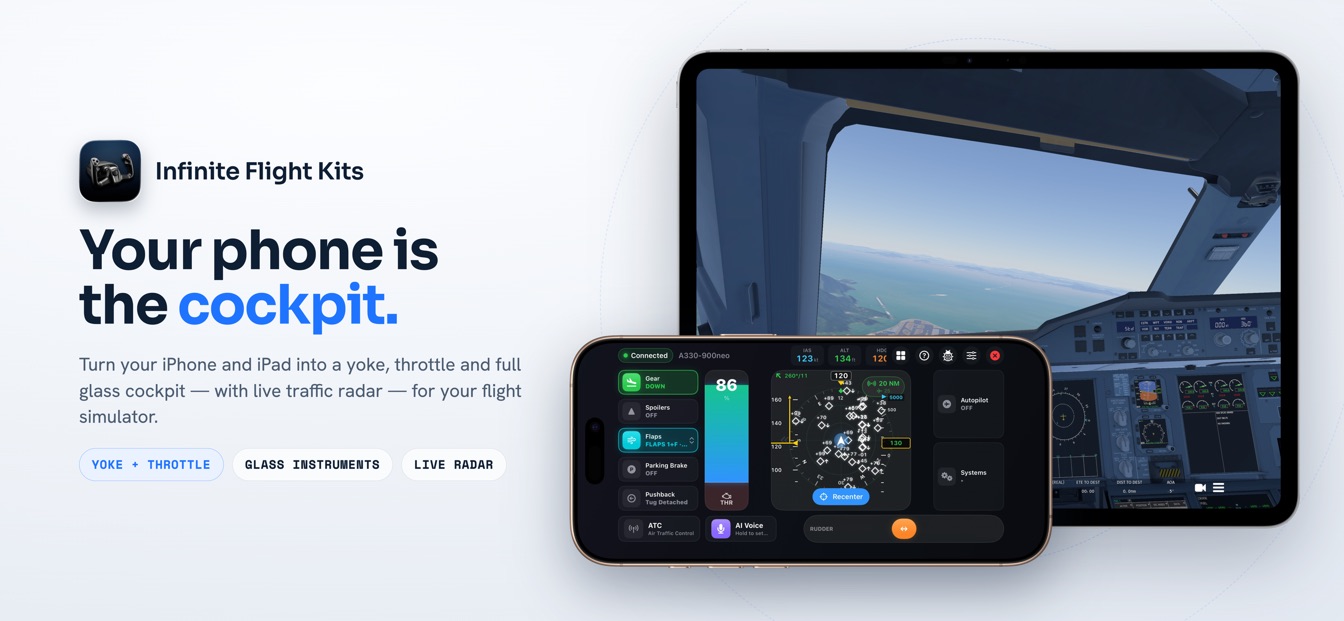
SkyYoke は iPhone を、Infinite Flight 向けのライブ空中衝突防止レーダー付きのヨーク・スロットル・グラスコックピットに変えます
スマホがコックピットに。 ヨーク、スロットル、そしてフル装備のグラスコックピットを iPhone に――ライブの空中衝突防止レーダーも。

この携帯性は、3 つの場面で効いてきます。

  • ソファでフライト。 シミュレーターは大画面に、操縦は手の中に。カーペットを横切るケーブルはありません。
  • 旅先のセットアップ。 預け荷物ではなく、ノート PC の隣のポケットに滑り込むフライトシミュレーター装備。
  • ホームコックピット。 即席の追加ステーションに。副操縦士にスマホを手渡せばすぐ操縦開始――新たに買うものも設定するものもありません。

傾けて飛ばす:モーションヨークの仕組み

MOTION YOKE
WINGS LEVELBANK LEFTBANK RIGHTPITCH UP
  1. 持って中立にタップ一つで、その握り方を水平飛行のニュートラルとして記録。
  2. 左に傾けるスマホを左へ傾けると、機体は左へバンク。
  3. 右に傾ける逆に傾ければ右バンク――1:1 で滑らかに。
  4. 手前に傾ける上端を自分の方へ倒せばピッチアップして上昇。

モーションヨークが測るのは重力であって、端末の任意の角度ではありません。ニュートラルの姿勢を自分で選び――膝の上に平置き、肘掛けに立てかけ、あるいは操縦桿のように立てて持つ――アプリはそのニュートラルからどれだけ傾けたかを追跡します。基準が自分の中心に対する重力ベクトルなので、操作は握り方に依存せず、どんな持ち方でもまったく同じように動作し、ジンバルロックに陥ることも決してありません。
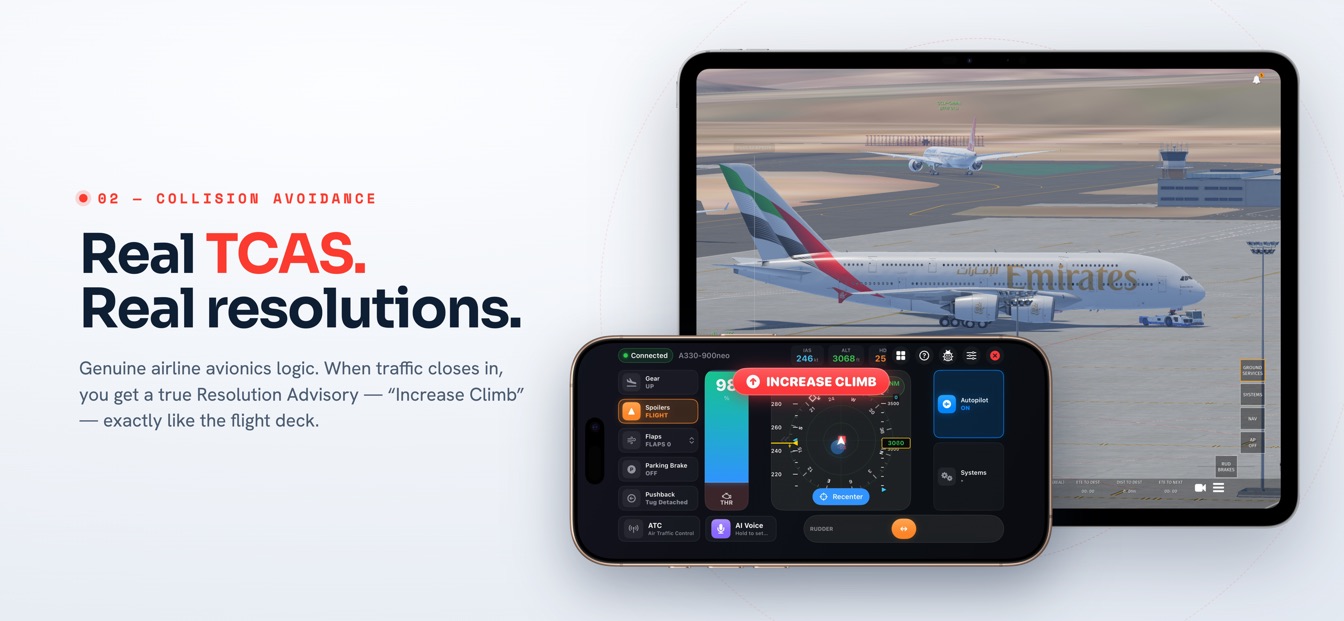
Infinite Flight でのフライト中に回避指示を発する SkyYoke の TCAS 空中衝突防止レーダー(Infinite Flight での表示)
本物の TCAS、本物の回避指示。 他機が接近すると、ヨークパッド上のスコープが正真正銘の回避指示を発します。 (Infinite Flight の機能)

何時間でも快適に使える 2 つの工夫があります。ワンタップのリセンターは、座り直すたびに新しいニュートラルを記録。設定可能な傾き範囲――15〜60 度の間で自由に――は、どれだけ傾ければフルに舵が振れるかを決めます。指先ほどの軽い操作にしたいなら狭く、旅客機のような意図的な入力にしたいなら広く設定できます。

そしてスマホは標準的なロール軸とピッチ軸を送るだけなので、機種は問いません。ヨーク式の 737 やセスナ 172 は傾きを操縦桿の旋回・引きとして読み取り、フライ・バイ・ワイヤの A320 はまったく同じ傾きをサイドスティックの舵として読み取ります。1 つの操作で、あらゆるフライトデッキに。

傾けたくない? タッチジョイスティックを

スマホを完全に静止させておきたい――たとえばトレイテーブルの上に置いて――なら、タッチジョイスティックに切り替えましょう。画面上のセルフセンタリングパッドで、ノブをドラッグしてロールとピッチを操作し、手を離せばまっすぐニュートラルに戻ります。マッピングは 1:1 なので、親指の動きがそのまま機体に反映されます。

自分の機体らしい感触に仕上げる

求める反応はパイロットごとに違い、ふさわしい反応も機体ごとに違います。SkyYoke のすべての軸――ピッチ、ロール、ヨー、ブレーキ――は、スマホを離れる前にそれぞれ専用の調整チェーンを通ります。
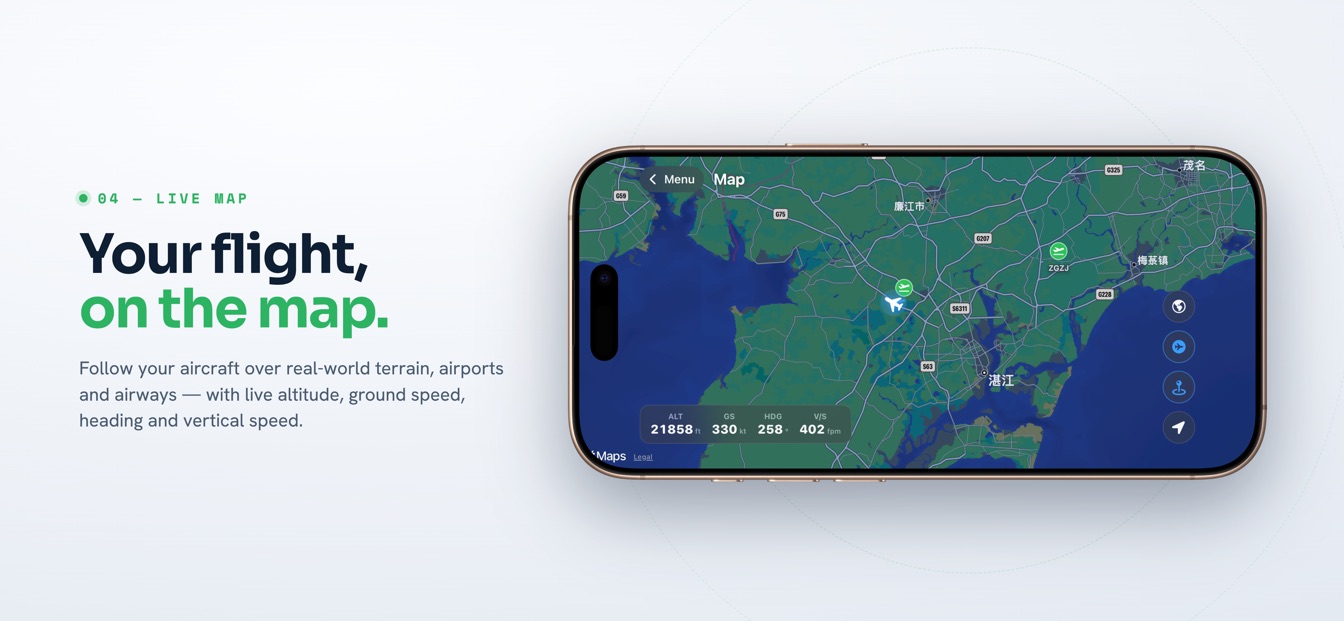
実世界の地形の上で Infinite Flight を追う SkyYoke のライブムービングマップ(Infinite Flight での表示)
あなたのフライトを地図で。 実世界の地形・空港・航空路の上を飛ぶ機体を、ライブデータとともに追跡。 (Infinite Flight の機能)
軸ごとのチューニング――各設定はピッチ、ロール、ヨー、ブレーキに独立して適用されます
設定変わること
感度一定の傾きやドラッグに対して機体がどれだけ強く反応するか。
デッドゾーン中立付近の反応しない帯域。フルストロークでもきちんと舵が振り切れるよう再スケールされます。
エクスポカーブ両端の操作量はそのままに、中立付近の反応をやわらげます。
反転感覚が逆の場合に軸を反転します。
スムージング手の震えや道路の揺れを信号から除くローパスフィルター。

ショートフィールドのセスナの場周飛行なら、高感度でエクスポなしが向くかもしれません。巡航中の大型機なら、ゆるいカーブに少しのスムージング、そして広めのデッドゾーンで扱いやすくなります。各軸を一度チューニングすれば、設定はそのまま保持されます。

Microsoft Flight Simulator のリモートヨークを接続する

CONNECT
SAME WI-FIDISCOVEREDAXES BOUNDCLEARED FOR TAKEOFF
  1. 同じ Wi-Fi にiPhone とシミュレーター機を同一ネットワークに。
  2. 自動検出SkyYoke が LAN 上のシミュレーターを発見――タップ一つで接続。
  3. 軸を一度割り当てロール・ピッチ・スロットル・ヨーを、手順に沿って割り当て。
  4. 飛ぶ傾け、スライドし、声で機体をリアルタイムに操縦。

MSFS は外部アプリのセットアップが面倒だという評判を、もっともな理由で背負ってきました。SimConnect の設定ファイル、ポート番号、ファイアウォールの例外設定。SkyYoke の答えが IF Yoke Bridge、MSFS 2024 と同じ Windows PC 上で動く無料のコンパニオンアプリです。ブリッジはシミュレーターとローカルで通信し、ネットワーク側も自ら処理します――Windows ファイアウォールを自動設定し、Wi-Fi 上で自らを告知するので、スマホがひとりでに見つけます。IP アドレスを入力することも、XML ファイルを開くことも一切ありません。
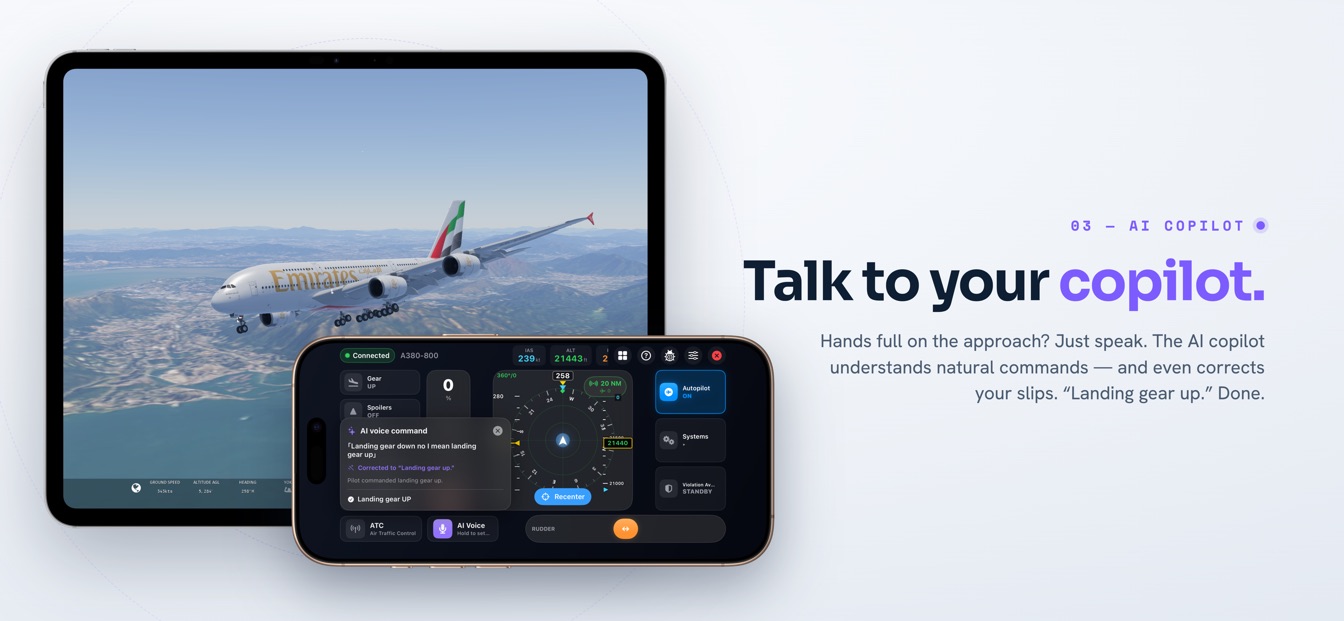
Infinite Flight で音声コマンドを実行する SkyYoke のオンデバイス AI 音声コパイロット(Infinite Flight での表示)
コパイロットに話しかける。 「ランディングギア アップ」のような自然な指示を話すだけで、オンデバイス AI が実行します。 (Infinite Flight の機能)

ブリッジは、MSFS のコントローラー開発者なら誰もが知る癖にも対処します。更新されない軸の値はゼロに戻ってしまう、という癖です。IF Yoke Bridge は操縦位置を継続的に再送するため、ヨークは指示したバンクを保ち、スロットルも置いた場所に留まります。機体プリセット――汎用、iniBuilds A320、iniBuilds A350、そして Fenix A320――が、Fenix の有名な非標準スラストレバーを含め、機体に合わせてマッピングを最適化します。

配信中: Microsoft Flight Simulator 2024 対応は SkyYoke で今日すでに提供されており、Infinite Flight と並んで動作します――このページの内容はすべてリリース済みのアプリで利用できます。App Store でダウンロードして、飛び立ちましょう。

ヨークは決して単独では飛ばない

ロールとピッチは仕事の半分にすぎません。だからコックピット画面は、残りも指先に収めています――スマホが運ぶのは、たった 1 本の軸ではなく、フル装備の操縦セットです。
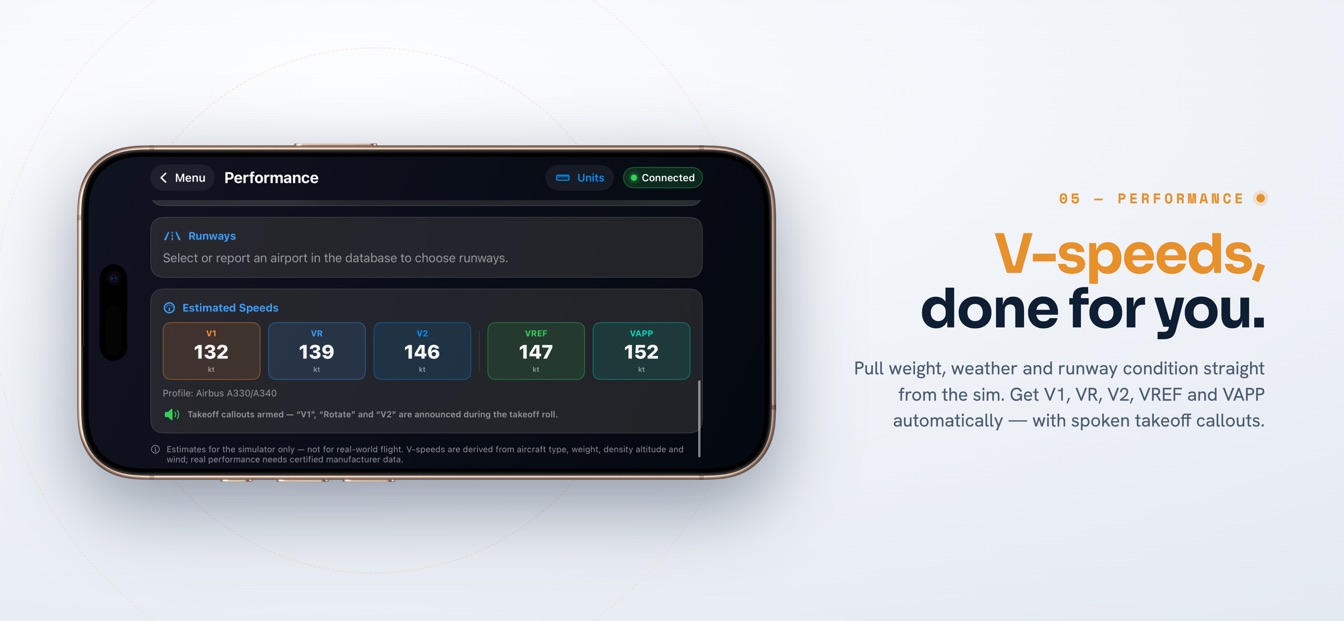
Infinite Flight 向けに V1・VR・V2・VREF・VAPP を算出する SkyYoke のパフォーマンス画面(Infinite Flight での表示)
V スピードは、おまかせ。 重量・気象・滑走路はシミュレーターから取得。V1・ローテート・V2 の音声コールアウトが自動でアームされます。 (Infinite Flight の機能)

Smart throttle

A single thrust lever beside the yoke, with Airbus-style gated detents on Airbus presets and a haptic tick at idle.

Rudder bar

A self-centering strip along the bottom edge for yaw — taxi steering, crosswind corrections and slips.

Autopilot panel

AP master plus altitude, vertical speed, speed and heading targets, with NAV and approach modes.

Beyond the primary controls, the same screen reaches landing gear, flaps, spoilers, parking brake, pushback, lights and pause — and in MSFS, braking rides a true progressive axis rather than an on-off key. If thrust management is what brought you here, there is a dedicated page on the remote throttle for MSFS.

Your first MSFS flight, step by step

Here is how a session goes:

  1. Get SkyYoke. Download it free on the App Store and open it on your iPhone.
  2. Install the bridge. Put the free IF Yoke Bridge on the Windows PC that runs MSFS 2024 — on first launch it sets up its own firewall rule, with nothing to configure by hand.
  3. Let the phone find it. Connect your iPhone to the same Wi-Fi as the PC, open SkyYoke and choose Microsoft Flight Simulator. Discovery is automatic.
  4. Pick a preset. Generic works everywhere; the iniBuilds A320, iniBuilds A350 and Fenix A320 get tailored mappings.
  5. Set your neutral. Hold the phone the way you want to fly, tap Recenter, and choose a tilt range between 15 and 60 degrees.
  6. Fly. Load a flight and go — tilt or touch for roll and pitch, with the throttle and rudder on the same screen and a 60 Hz control loop carrying it all to the sim.

From pushback to shutdown, the phone is the only controller you will need to reach for.

よくある質問

What MSFS pilots ask about flying from a phone.

What is a Microsoft Flight Simulator remote yoke?+

A Microsoft Flight Simulator remote yoke is an app that turns a phone into wireless flight controls for MSFS running on your PC. SkyYoke uses the iPhone you already own: tilt it to bank and pitch, or drag an on-screen joystick pad, and the inputs reach MSFS 2024 over your home Wi-Fi through a free Windows companion app called IF Yoke Bridge. No cables, no extra hardware.

Does SkyYoke support Microsoft Flight Simulator 2024?+

Yes. SkyYoke supports MSFS 2024 today, alongside Infinite Flight — both work in the released app. MSFS connects through IF Yoke Bridge, a free Windows companion app that runs beside the simulator and handles the bridge and cockpit link. Download it on the App Store now to fly either simulator.

Do I have to edit SimConnect.xml or open firewall ports myself?+

No. The connection runs through IF Yoke Bridge, a free companion app that sits next to MSFS on your Windows PC. The bridge configures the Windows firewall automatically on first launch and announces itself on your network, so the phone discovers it without you typing an IP address or touching SimConnect configuration files.

Does a tilt yoke work for Airbus sidesticks as well as yoked Boeings and Cessnas?+

Yes. The motion yoke sends standard roll and pitch axes, so MSFS treats it like any other controller — it flies a yoked 737 or a Cessna 172 exactly as it flies a sidestick A320. Because the tilt input is gravity-based and grip-independent, you can hold the phone whichever way suits the aircraft. On Airbus presets, the throttle also gains gated detents — IDLE, CLIMB, FLX and TOGA — with a haptic tick at each gate.

Can I use the remote yoke, throttle and rudder at the same time?+

Yes — they share one screen. While you tilt or drag to fly, a smart throttle lever sits beside the yoke and a self-centering rudder bar runs along the bottom edge. In MSFS the brakes use a true progressive axis, and the bridge re-sends axis values continuously, so throttle and control positions hold steady instead of snapping back to zero.

Now boarding

Now on the App Store.

SkyYoke is available now — download it on the App Store and turn your iPhone into a full flight-sim cockpit.

Download on the App Store