Infinite Flight · iOS

Infinite Flight Remote Yoke

Your iPhone becomes the control column. Tilt to bank and pitch, or drag an on-screen yoke pad, and fly your Infinite Flight aircraft in real time — wirelessly, over your own Wi-Fi, with no hardware to buy.

An Infinite Flight remote yoke is an app that turns your iPhone into the flight controls for Infinite Flight running on another device. SkyYoke connects over your local Wi-Fi network and flies the aircraft live — you bank and pitch by tilting the phone (or by dragging an on-screen yoke pad), with the same motion translated into roll and pitch at 60 Hz.

A real yoke, with nothing plugged in

TCAS
OTHER TRAFFICPROXIMATETRAFFIC, TRAFFICCLIMB, CLIMBCLEAR OF CONFLICT
  1. Other trafficDistant contacts show as open white diamonds.
  2. ProximateWithin 6 NM and 1,200 ft it fills in solid.
  3. Traffic advisoryAn amber circle and a spoken “Traffic, traffic.”
  4. Resolution advisoryA red square with a spoken “Climb, climb.”
  5. Clear of conflictThreat resolved — the callout stands you down.

Infinite Flight runs beautifully on a tablet, but a touchscreen is a flat pane of glass — there is nothing to grip, no travel, no feel. A remote yoke fixes that by moving the controls onto a second device you actually hold. With SkyYoke, the phone in your hand is the yoke: roll it left and the aircraft banks left; pull the top toward you and it pitches up. Your iPad stays free to be the out-the-window view and the instrument panel.

Because everything happens over your local network, there are no cables, no USB adapters and no Bluetooth pairing — and, importantly, no need for hardware that Infinite Flight on a tablet cannot even talk to. Two devices on the same Wi-Fi is the entire setup.
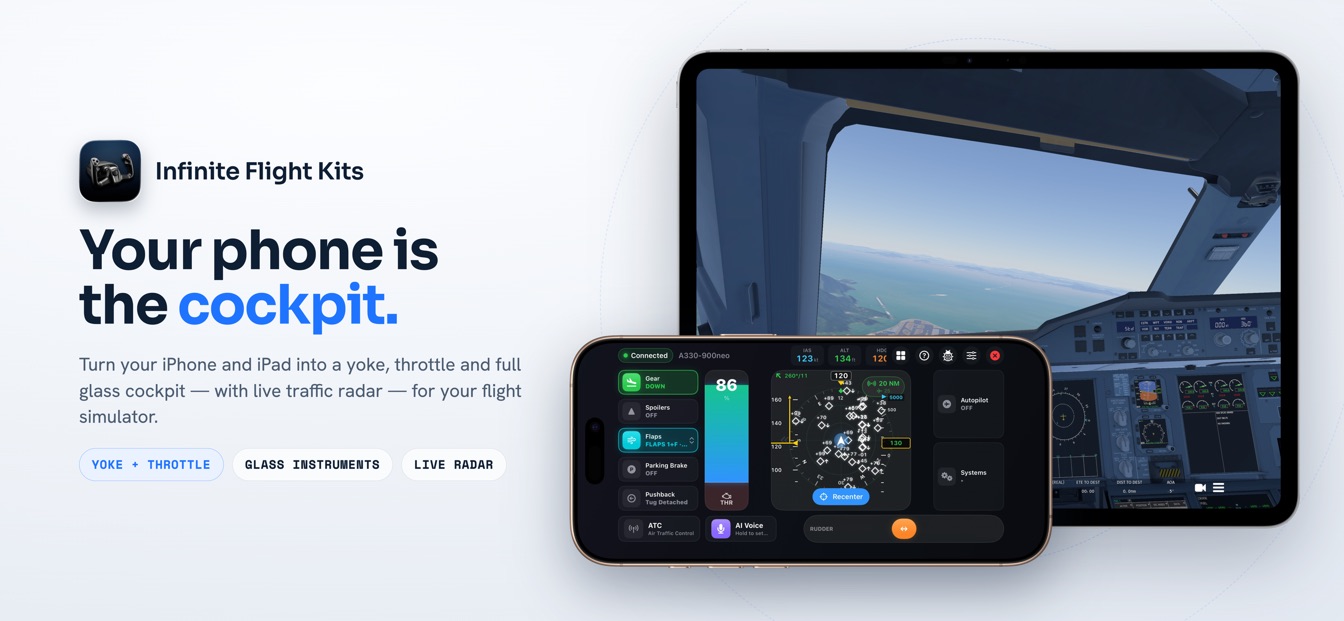
SkyYoke remote yoke cockpit on an iPhone in front of an iPad running Infinite Flight — throttle, glass instruments and live traffic radar on one screen
Your phone is the cockpit. The remote yoke shares the screen with the throttle, glass instruments and live traffic radar.

Two ways to fly: Motion Yoke and Touch Joystick

MOTION YOKE
WINGS LEVELBANK LEFTBANK RIGHTPITCH UP
  1. Hold & centreOne tap captures your grip as wings-level neutral.
  2. Tilt leftRoll the phone left and the aircraft banks left.
  3. Tilt rightRoll the other way to bank right — 1:1, smoothly.
  4. Tilt backEase the top toward you to pitch up and climb.

SkyYoke gives you two control models, switchable any time:

  • Motion Yoke (tilt). The app reads the gravity vector relative to a center you set — not raw angles — so it is grip-independent and never hits gimbal lock. Hold the phone flat on your lap or upright like a control column; both work. A configurable tilt range (15°–60°) sets how far you lean for full deflection, and a one-tap Recenter captures a new neutral whenever you reposition.
  • Touch Joystick. Prefer to keep the phone still? An on-screen, self-centering yoke pad gives you a draggable knob inside concentric rings and a crosshair. It maps 1:1 with no dead zone and springs back to center when you let go.

Either way, the live roll and pitch you are sending are drawn right on the control so you can see exactly what the aircraft is being told to do.

Tuned to fly the way you like

A yoke is only as good as its feel. Each axis runs through a deterministic signal-conditioning chain so you can make the controls as gentle or as sharp as you want:

  • Sensitivity gain for how much the aircraft reacts to a given lean.
  • Dead zone around center, rescaled so full travel still reaches the limit.
  • Exponential (expo) curve for fine control near neutral and authority at the edges.
  • Inversion, trim and low-pass smoothing to match your hand and damp out jitter.

These settings apply per axis — pitch, roll and yaw — so the yoke and the rudder can each have their own character.

More than a yoke — the whole flight deck

The remote yoke is the centerpiece, but it shares the screen with a complete set of controls so you never have to put the phone down:

Smart throttle

One lever for forward thrust, reverse on the ground and proportional wheel brakes below 40 kts.

Self-centering rudder

A dedicated rudder bar for precise yaw, taxi steering and crosswind landings.

Full autopilot

ALT, V/S, SPD and HDG with swipe-to-scrub, plus VNAV, LNAV and approach modes.

Swipe the same pad you fly with to pan the camera, tap to change views, and reach the systems panel, ATC keypad and a glass-cockpit HUD without leaving the cockpit screen.
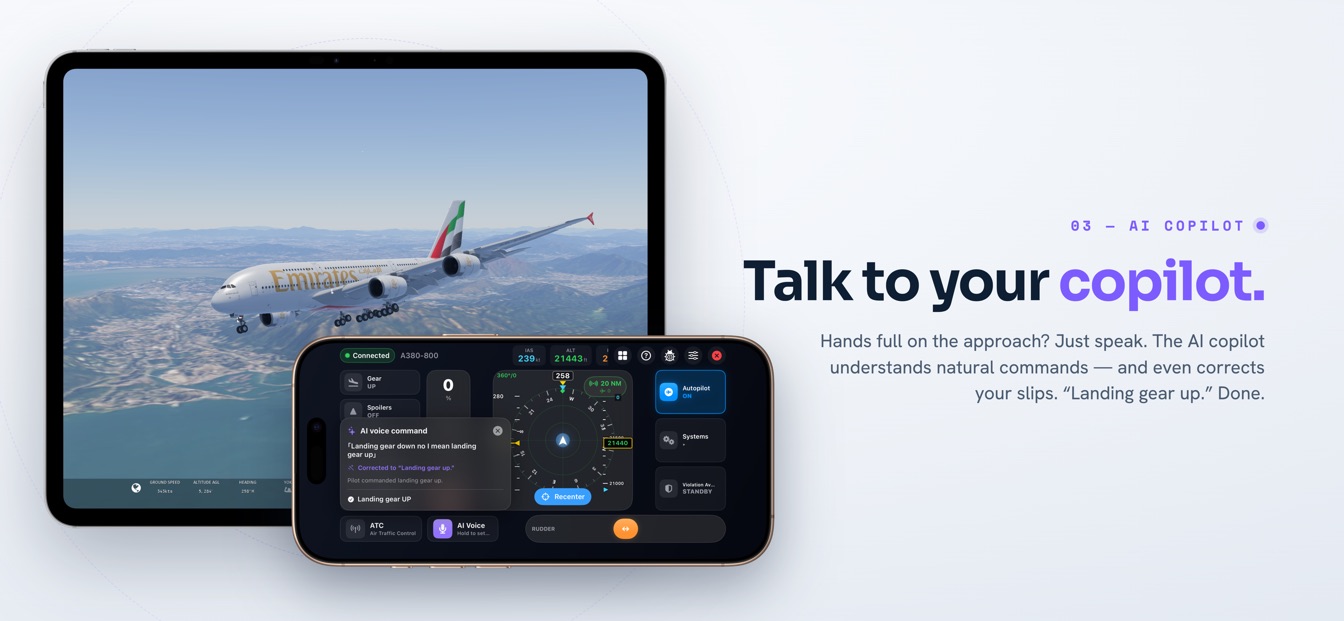
SkyYoke AI voice copilot recognizing the spoken command 'landing gear up' while flying an Airbus A380 in Infinite Flight
Talk to your copilot. Hands full on the approach? Speak — the on-device AI copilot understands natural commands like “landing gear up.”

In tilt mode the central pad also becomes an Airbus-style traffic scope: real TCAS II logic classifies every contact around you and even calls resolution advisories aloud, exactly where your eyes already are.
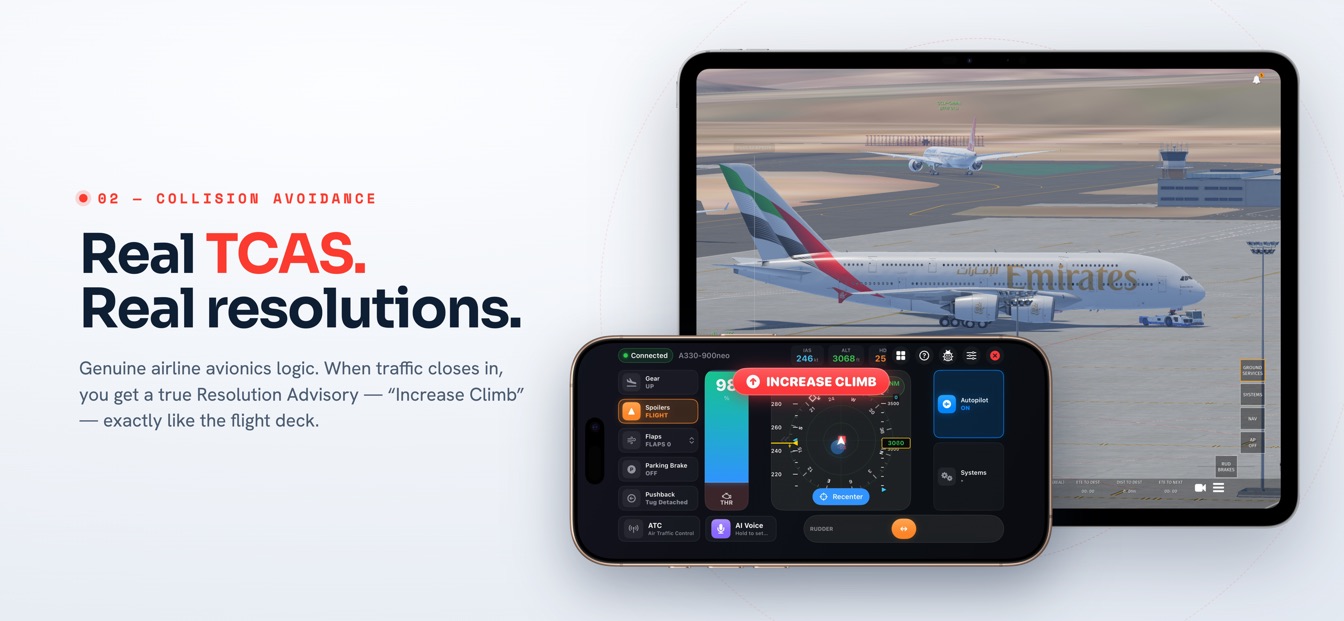
SkyYoke TCAS traffic radar issuing an 'increase climb' resolution advisory over the remote yoke pad in Infinite Flight
Real TCAS, real resolutions. When traffic closes in, the scope over the yoke pad escalates to a genuine resolution advisory.

How it works

CONNECT
SAME WI-FIDISCOVEREDAXES BOUNDCLEARED FOR TAKEOFF
  1. Same Wi-FiPut your iPhone and the simulator device on one network.
  2. Auto-discoverSkyYoke finds the sim on the LAN — connect in a tap.
  3. Bind axes onceMap roll, pitch, throttle and yaw, guided step by step.
  4. FlyTilt, slide and speak to fly the aircraft in real time.
  1. Connect. Put your iPhone and your Infinite Flight device on the same Wi-Fi. SkyYoke auto-discovers the simulator on the network — one tap to link up.
  2. Bind once. Map the virtual control axes in Infinite Flight's Controllers settings. The in-app setup guide walks you through roll, pitch, throttle and yaw step by step.
  3. Fly. Tilt or touch to fly, slide to power, swipe to look around. The cockpit responds at 60 Hz and reconnects automatically if your network blips.
Heads up: the optional AI Voice Copilot needs an Apple-Intelligence-capable iPhone on iOS 26; every other feature, including the remote yoke, works on any iPhone running iOS 17.2 or later.

Beyond the yoke: plan it, then watch it unfold

AUTOPILOT
ALT10000
HDG270
SPD250
SET ALTITUDESET HEADINGSET SPEEDAUTOPILOT ENGAGED
  1. Dial altitudeSwipe the ALT cell — the scrub rate scales with your speed.
  2. Dial headingSet the heading bug the same way.
  3. Dial speedArm the speed target with a swipe.
  4. EngageTap the master and the autopilot flies it.

Before you line up, the Performance screen pulls your weight, the in-sim weather and the runway straight from the simulator and estimates your V-speeds — then arms spoken “V1… Rotate… V2” callouts for the takeoff roll. Once you are airborne, a live moving map traces your flight over real terrain with altitude, ground speed, heading and vertical speed beside it.
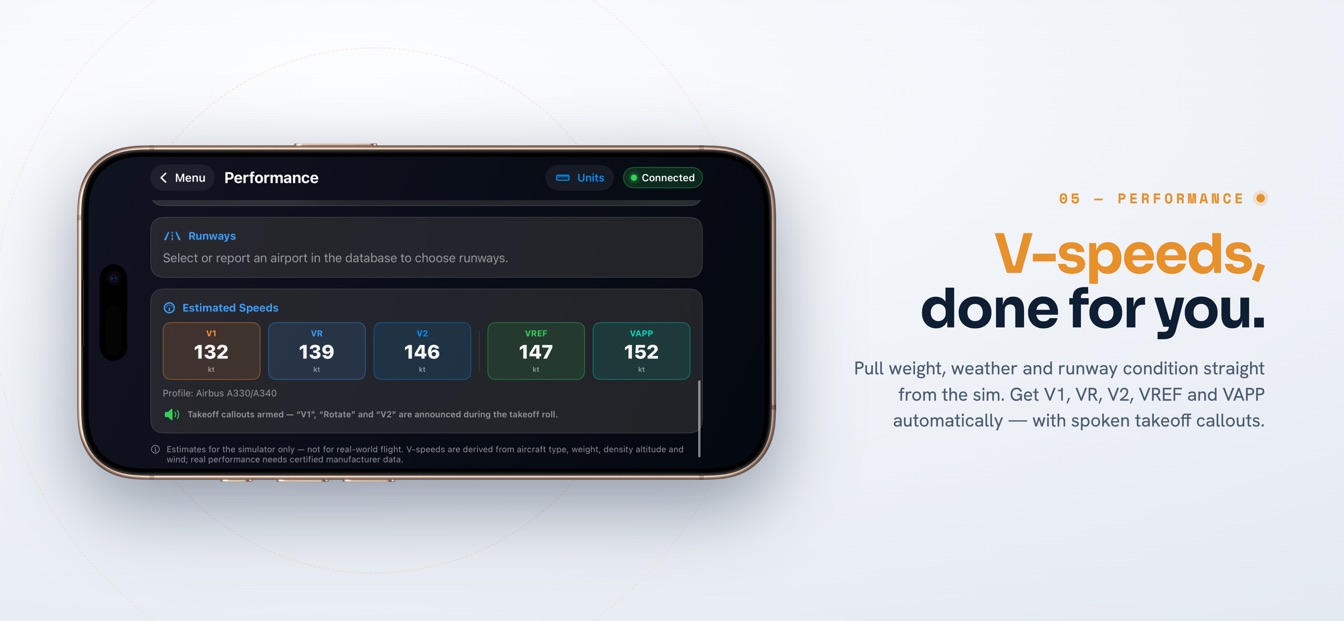
SkyYoke Performance screen estimating V1, VR, V2, VREF and VAPP for an Airbus A330 in Infinite Flight, with takeoff callouts armed
V-speeds, done for you. Weight, weather and runway come straight from the sim — with spoken takeoff callouts armed automatically.

Climb out, level off, and the picture changes again. A MapKit moving map follows your aircraft using Infinite Flight's own position data — never your phone's GPS — so you always know where you are over the world.
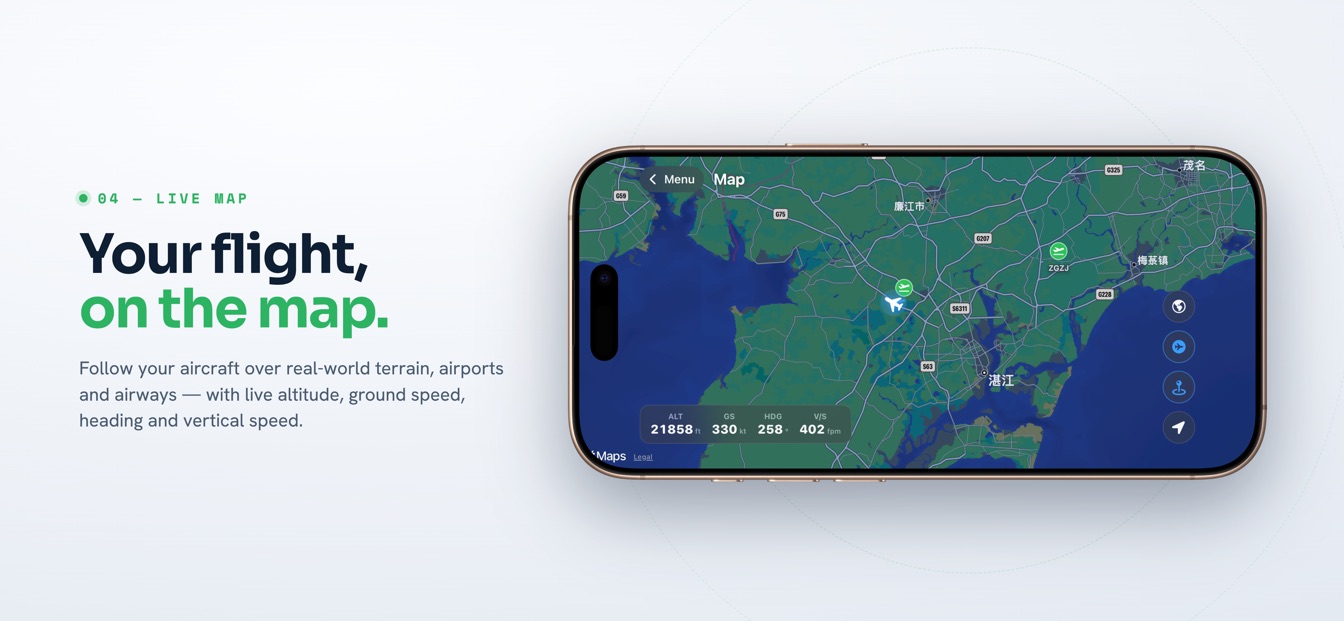
SkyYoke live moving map following an Infinite Flight aircraft over real-world terrain with live altitude, ground speed, heading and vertical speed
Your flight, on the map. Follow the aircraft over real-world terrain, airports and airways while you fly with the yoke.

Frequently asked questions

Everything you need to know about flying Infinite Flight with a remote yoke.

What is an Infinite Flight remote yoke?+

It is an app that turns your iPhone into the flight controls for Infinite Flight running on a separate device. SkyYoke connects over your local Wi-Fi network and lets you bank and pitch the aircraft by tilting the phone, or by dragging an on-screen yoke pad, in real time — with no physical hardware.

Do I tilt the phone or use the screen?+

Both options are built in. Motion Yoke reads gravity, so banking and pitching work in any grip — flat on your lap or held upright like a control column. Touch Joystick gives you an on-screen, self-centering yoke pad instead. Switch between them any time in Settings.

What do I need to use it?+

Two devices on the same Wi-Fi network: an iPhone running SkyYoke, and a second device such as an iPad running Infinite Flight with the Connect API enabled. You bind the control axes once in Infinite Flight's Controllers settings — the in-app setup guide walks you through it.

Is there any lag flying over Wi-Fi?+

SkyYoke runs a 60 Hz control loop with change-detection and rate limiting, so it stays responsive without flooding your network. On a normal home Wi-Fi network the response feels immediate, and the app reconnects automatically if the link drops.

Is SkyYoke an official Infinite Flight app?+

No. SkyYoke is an independent app built on Infinite Flight's public Connect API. It is not affiliated with, sponsored by, or endorsed by Infinite Flight LLC.

Boarding soon

Be first on the flight deck.

SkyYoke is coming soon to the App Store. Join the early-access list for the launch date and a first look at the cockpit.