Remote Yoke and Throttle for Infinite Flight
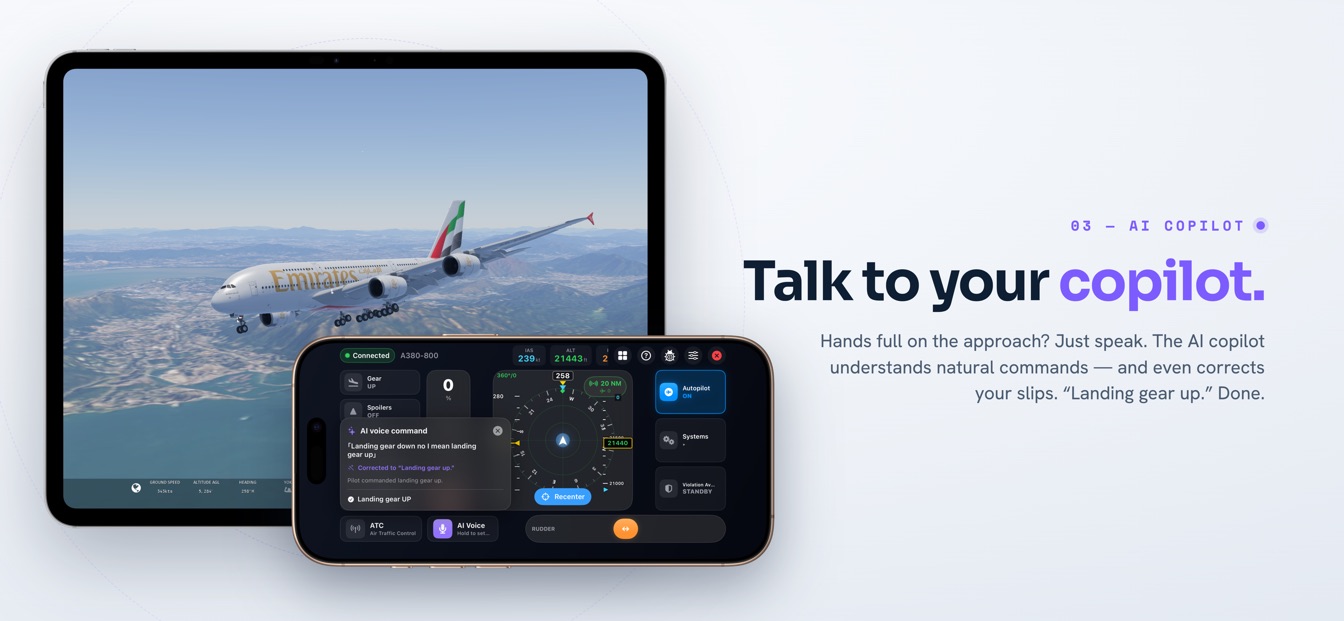
Hold one iPhone and you are holding the whole flight deck — a remote yoke and throttle for Infinite Flight that banks, powers and steers your aircraft at the same time, wirelessly over your own Wi-Fi.
A remote yoke and throttle for Infinite Flight puts every primary flight control on a single wireless device. SkyYoke turns one iPhone into the full set: tilt the phone to bank and pitch while your thumb rides a smart thrust lever and a self-centering rudder bar sits along the bottom edge — every axis streamed live to Infinite Flight over local Wi-Fi at 60 Hz, with no extra hardware.
Both hands on the aircraft at once
- Dial altitudeSwipe the ALT cell — the scrub rate scales with your speed.
- Dial headingSet the heading bug the same way.
- Dial speedArm the speed target with a swipe.
- EngageTap the master and the autopilot flies it.
Picture a gusty crosswind final. One hand makes small, continuous corrections; the other guards the power; your feet hold the nose on the centerline. That choreography is what a touchscreen alone can never host — and it is exactly what a remote yoke and throttle for Infinite Flight restores. SkyYoke moves the controls onto one iPhone you actually hold: the phone's tilt is the yoke, a thrust lever rides under your thumb, and a rudder bar waits under another finger. Three control surfaces, three simultaneous inputs, one device.
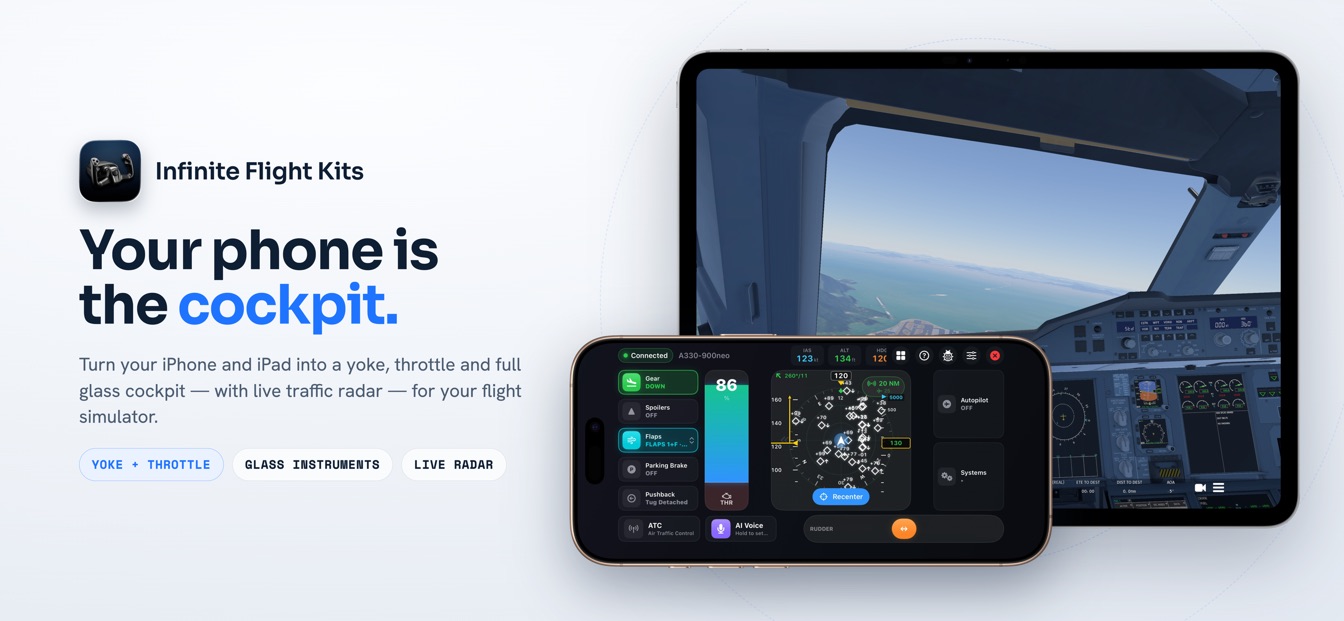
Hardware can get you there too — a stick on one side of the desk, a throttle quadrant on the other — but Infinite Flight on a tablet cannot connect to any of it, and a desktop yoke rig costs real money and real shelf space. SkyYoke compresses the entire setup into the device already in your pocket, talking to the simulator through Infinite Flight's Connect API with automatic discovery: open the app on the same Wi-Fi and it finds your simulator by itself.
A guided tour of the cockpit screen
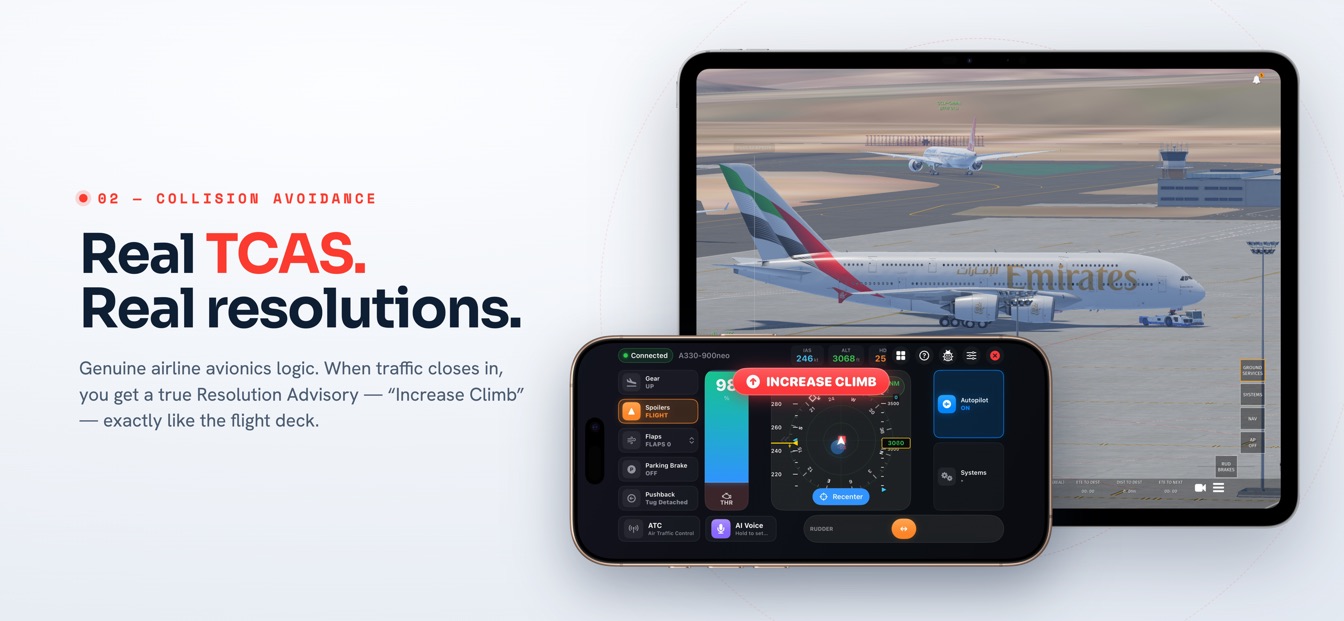
The layout reads like a panel scan, left to right. Along the left edge sit the handling tiles — landing gear, flaps, spoilers — the things you tap once per phase of flight. Beside them stands the throttle, a tall lever built for a thumb that never has to leave it. The center belongs to the yoke pad, which doubles as a radar display. On the right is the autopilot panel with its swipe-to-scrub target strips, and behind it the systems controls: lights, signs, autobrake, engine start. The rudder runs the width of the bottom edge, exactly where a spare finger naturally lands in a landscape grip.
| Control | On-screen position | Gesture |
|---|---|---|
| Yoke (pitch & roll) | Central pad, middle of the screen | Tilt the phone, or drag the pad in Touch Joystick mode |
| Throttle | Tall lever to the left of the pad | Slide with a thumb; pull below idle for reverse or brakes |
| Rudder | Bar along the bottom edge | Slide left or right; springs back to center on release |
| Handling tiles (gear, flaps, spoilers) | Left column | Tap |
| Autopilot targets | Right-side panel | Swipe a value strip to scrub; tap to toggle modes |
| Camera | The same central pad | Swipe to pan the view; tap to switch cameras |
The same pad steers the camera
Swipe across the yoke pad and you are panning Infinite Flight's camera; tap it to change views. Check wingtip clearance on a tight taxiway, watch the gear tuck away after rotation, then go straight back to flying — no extra control cluster, no mode menu in between.
Tilt to fly, or touch to fly
- Hold & centreOne tap captures your grip as wings-level neutral.
- Tilt leftRoll the phone left and the aircraft banks left.
- Tilt rightRoll the other way to bank right — 1:1, smoothly.
- Tilt backEase the top toward you to pitch up and climb.
The yoke comes in two flavors, switchable whenever you like. Motion Yoke measures gravity rather than raw rotation, which makes it grip-independent: it behaves identically flat on a lap or held upright like a control column, and it cannot hit gimbal lock. You decide how far you lean for full deflection — anywhere from 15° to 60° — and a one-tap recenter captures a new neutral whenever you shift in your seat. Touch Joystick trades motion for stillness: a self-centering on-screen pad that maps 1:1 and snaps back to neutral the instant you let go.
Whichever you choose, each axis — pitch, roll, yaw and brake — carries its own sensitivity, dead zone, expo curve, inversion, trim and smoothing, so the combined rig can be tuned gentle for a widebody or razor-sharp for a light single. The deeper story of the motion model lives on the remote yoke page.
One lever, three jobs
- Push up — thrustThe top of the lever is forward climb power.
- Pull to idleA haptic click marks the idle detent.
- On ground, fast — reverseIn the red zone the lever holds reverse thrust.
- Slowing — wheel brakesBelow 40 kt the same zone becomes proportional braking.
- Airborne — blockedReverse in the air is locked out with a warning.
The throttle may be the cleverest strip of pixels on the screen. Its main travel commands 0–100% forward thrust, but pull it into the red zone below idle and the lever reads the situation. Rolling out at 40 knots or more, it engages reverse thrust and holds it for you — Infinite Flight normally requires reverse to be held down, so the lever does the holding. Slow through 40 knots and that same travel becomes proportional wheel braking for the taxi in. Airborne, reverse is refused outright: a warning banner appears and a repeating haptic makes the refusal impossible to miss. The lever even recolors by role — blue or green for forward thrust, amber for braking, red for reverse — so a glance tells you what your thumb is commanding.
On Airbus types the lever automatically becomes a gated quadrant with REV FULL, REV, IDLE, CLIMB, FLX·MCT and TOGA detents, each gate crossing marked by a haptic tick. The full breakdown of reverse logic, braking and detents is on the dedicated remote throttle page.
Haptics stitch it together
Because all three controls share one device, they can share one sense of touch. SkyYoke uses the iPhone's haptic engine as the tactile channel a touchscreen normally lacks:
- Idle detent tick. A crisp pulse marks the throttle's idle stop, so you find it without looking down.
- Gear thunk. Command the landing gear and the phone plays a five-second mechanical rumble while it travels.
- Ground rumble. During taxi the device vibrates in proportion to ground speed, with extra bumps for runway seams.
- Flap and gate ticks. Each flap step — and each Airbus thrust detent — lands with its own click.
The payoff is muscle memory. After a few flights you select reverse, find idle and feel the rollout without your eyes ever leaving the iPad.
Setting up a remote yoke and throttle for Infinite Flight
- Same Wi-FiPut your iPhone and the simulator device on one network.
- Auto-discoverSkyYoke finds the sim on the LAN — connect in a tap.
- Bind axes onceMap roll, pitch, throttle and yaw, guided step by step.
- FlyTilt, slide and speak to fly the aircraft in real time.
- Switch on Infinite Flight Connect. Enable the Connect API in Infinite Flight's settings so the simulator accepts a companion device.
- Join the same Wi-Fi. Open SkyYoke on your iPhone; it discovers the simulator on the network automatically and links up with a tap.
- Bind the axes once. Infinite Flight's Controllers settings need to know which axis is which — the in-app setup guide walks you through roll, pitch, yaw and throttle.
- Recenter and go. Capture your neutral grip with one tap, line up, and fly with both hands on the aircraft.
A set of guardrails runs underneath the whole rig: every control locks while the simulator is paused, landing-gear changes are blocked on the ground, and an optional fail-safe engages the autopilot if the app disconnects or moves to the background. Leaving the cockpit screen releases anything held — including reverse — so the aircraft is never left listening to a control nobody is touching.
Frequently asked questions
Quick answers about running yoke, throttle and rudder from one iPhone.
What is a remote yoke and throttle for Infinite Flight?+
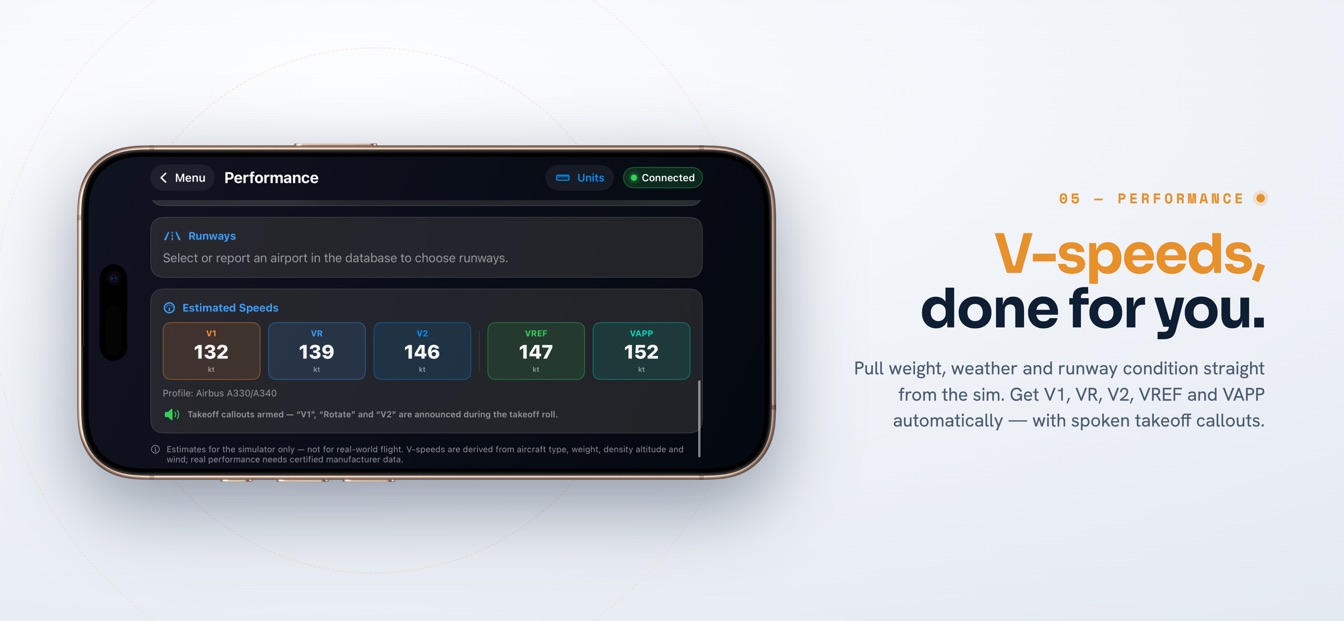
It is an app that turns one iPhone into the complete primary controls for Infinite Flight running on another device. SkyYoke connects over your local Wi-Fi network and gives you a motion or touch yoke, a smart thrust lever and a self-centering rudder bar on the same screen, so you can bank, power and steer simultaneously without buying any physical hardware.
Can I really fly, work the throttle and steer at the same time?+
Yes. The yoke reads the phone's tilt, so it costs you no fingers — your thumb stays on the throttle lever while another finger rides the rudder bar. Every axis is sampled together and streamed to Infinite Flight by a 60 Hz control loop, so a crosswind correction, a power change and a rudder input all reach the simulator at once.
How does one lever cover thrust, reverse and braking?+
The lever's main travel commands 0–100% forward thrust. Pulling into the red zone below idle changes meaning with context: on the ground at 40 knots or faster it engages held reverse thrust, below 40 knots it applies proportional wheel braking, and in the air reverse is blocked entirely with a warning banner and a repeating haptic so you cannot trigger it by accident.
What do I need before my first flight?+
An iPhone on iOS 17.2 or later for SkyYoke, plus a second device running Infinite Flight with its Connect API enabled, both on the same Wi-Fi network. You bind the control axes once in Infinite Flight's Controllers settings, and the app's built-in setup guide walks through every step. No adapters, cables or Bluetooth pairing are involved.
Is SkyYoke endorsed by Infinite Flight?+
No. SkyYoke is an independent app that talks to the simulator through Infinite Flight's public Connect API. It is not affiliated with, sponsored by, or endorsed by Infinite Flight LLC. The app is available now on the App Store — download it on the App Store / Google Play and turn your iPhone into the full control set.
Now on the App Store.
SkyYoke is available now — download it on the App Store and turn your iPhone into a full flight-sim cockpit.
Download on the App Store Get it on Google Play