你的 Thrustmaster 駕駛盤替代方案
當電子零件老化、桌面消失,或你的模擬飛行轉往平板時,最聰明的 Thrustmaster 駕駛盤替代方案,可能就是你隨身帶著的 iPhone。傾斜就能控制傾斜與俯仰——並把駕駛艙其餘的部分一起帶進同一個畫面。
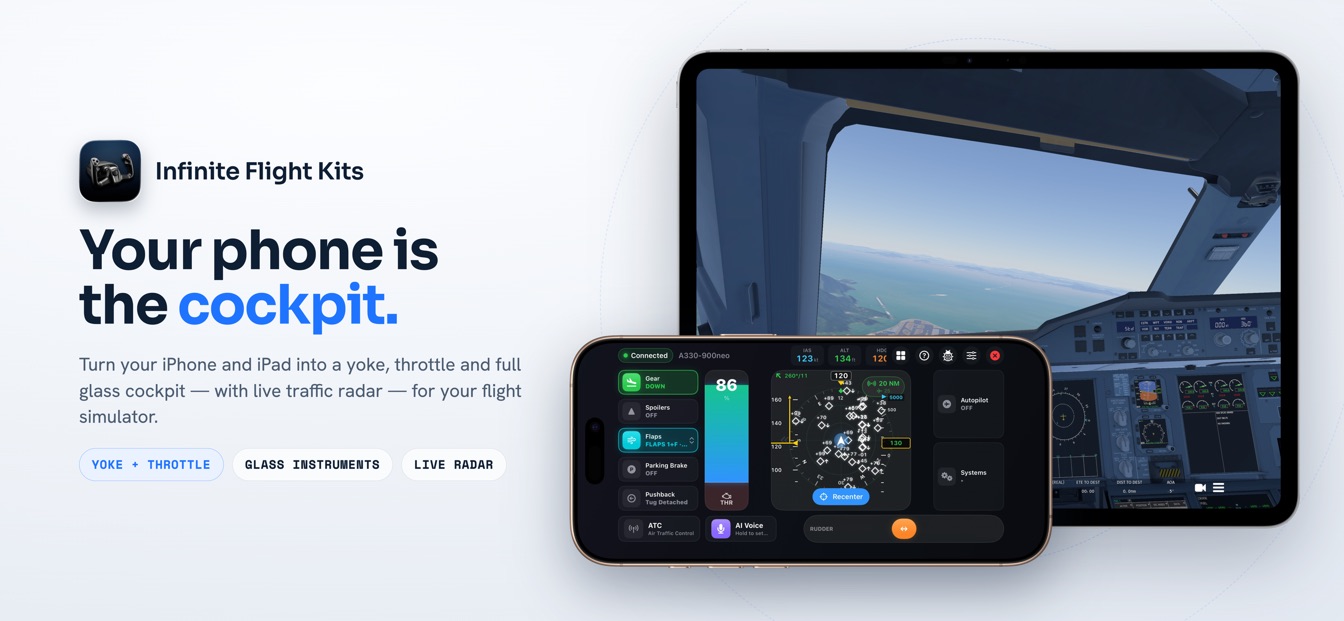
一個實用的 Thrustmaster 駕駛盤替代方案,就是你口袋裡的 iPhone:SkyYoke 把它變成無線體感駕駛盤,用來操控跑在另一台裝置上的飛行模擬器——轉動手腕來控制傾斜、朝自己拉來控制俯仰——同一畫面上還有智慧油門、方向舵條與自動駕駛面板,透過你自己的 Wi-Fi 運作,不需桌面夾具,也不需 USB 埠。
為什麼模擬飛行玩家會去找 Thrustmaster 駕駛盤替代方案
- 往上推——推力操縱桿頂端是前推的爬升動力。
- 拉到怠速觸覺輕點提示你進到怠速檔位。
- 地面、高速——反推力在紅區裡,操縱桿會維持反推力。
- 減速中——輪煞車40 kt 以下,同一區變成比例式煞車。
- 空中——鎖定空中禁用反推力,並會發出警告。
桌上型駕駛盤很少優雅地退役。這週副翼在中位附近開始抖動;下週,升降舵軸在靜止時就讀到滿舵上抬,而重新校正只是延後宣判。電位器會磨損、USB 板會罷工,而修一台老機器的花費,可能高得出乎意料,甚至逼近當初買新的價格。當那一天來臨,最實用的 Thrustmaster 駕駛盤替代方案,或許早已在你口袋裡——因為你隨身帶的 iPhone 有動作感測器、觸控螢幕與 Wi-Fi 無線電,這些加起來就能做到操縱柱能做的一切,還多了不少它從來做不到的事。
電子零件故障,只是通往這一頁的其中一條路。不少玩家是在駕駛盤好端端的情況下就割捨了它:
- 夾具問題。駕駛盤需要一個穩固的桌緣與固定的擺放空間,而不是每個家——或每位室友——都願意給它一席之地。
- 搬家。把操縱柱、油門座與踏板全部裝箱,正是一個自然而然會問自己「我到了另一頭真的還會再全部裝回去嗎」的時刻。
- 升級的算盤。從入門級操縱柱升級到更重的一台,在你還沒添購任何一支操縱桿或踏板之前,就已經是一筆實實在在的開銷。
- 平板飛行模擬。如果你的模擬器是 iPad 上的 Infinite Flight,USB 駕駛盤根本沒有埠可插——再多轉接頭也改變不了這一點。
讓你的手腕變成操縱柱
- 握好並回中一點就把你的握姿設為機翼水平的中立點。
- 向左傾把手機往左滾,飛機就向左傾斜。
- 向右傾往另一邊滾就向右傾斜——1:1、順暢。
- 向後傾把頂端朝自己輕拉,就抬頭爬升。
SkyYoke 的體感駕駛盤把手機本身當成操縱柱。手腕往左滾,副翼就跟著動;把手機頂端朝胸口輕拉,機頭就上抬——這正是 737 機組透過操縱盤所做的兩個輸入動作,只是少了膝間那根柱身。如果 Infinite Flight 裡的重型 Boeing 是你的常駐機隊,這個手勢從第一個轉彎起就令人熟悉。
因為這款 App 量測的是相對於你所選中立點的重力向量——而非手機的原始朝向——握姿由你自己決定。像操縱盤那樣直立握著手機,或平放在腿上都行;兩者飛起來一模一樣,也不會誤入萬向鎖。可自訂的 15 到 60 度傾斜範圍,決定你要傾斜多少才達到滿舵,而只要輕點一下,就能在你在座位上挪動時重新回中。
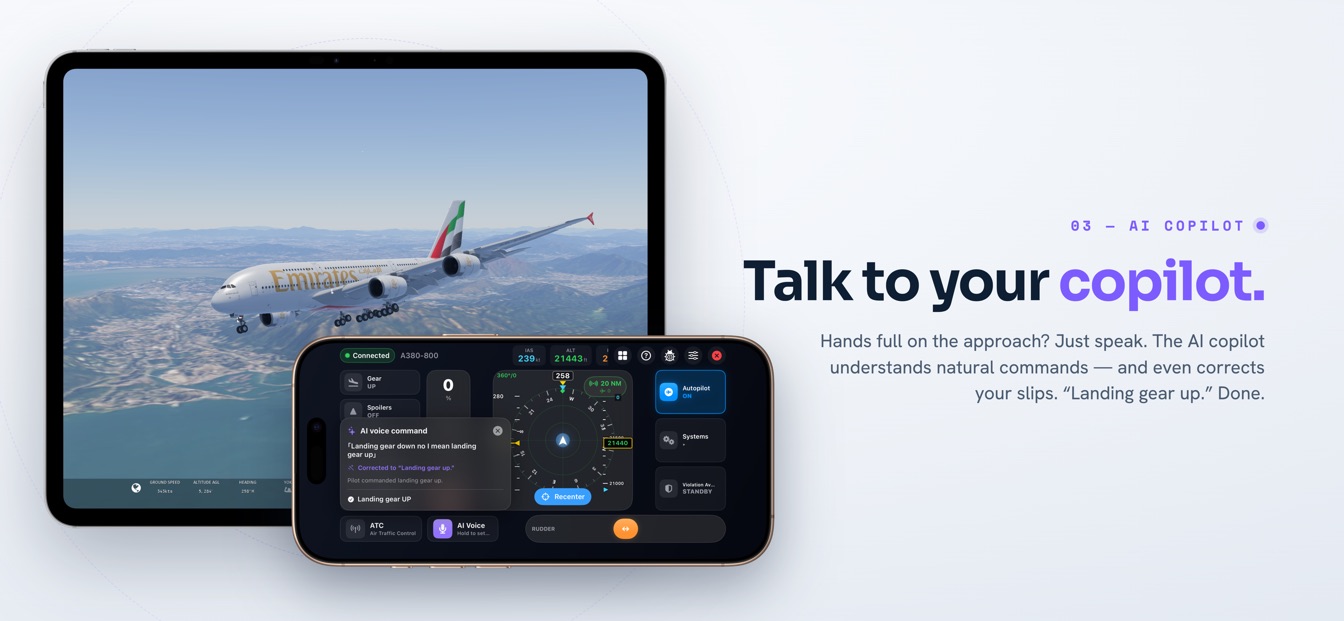
手感可以細到每一個軸。俯仰、滾轉、偏航與煞車各自擁有靈敏度、死區、expo 曲線、反向、配平與平滑度,整條輸入鏈以 60 Hz 串流到模擬器,並在網路打嗝時自動重連。完全不想揮動手機?一個自動回中的觸控搖桿操控盤,只差一個設定開關就能切換。
Thrustmaster 盒子裡從來沒有的東西
實體駕駛盤到它的底座就結束了;滾轉與俯仰之外的一切,都是另一筆花費。用手機取代它,飛行甲板的其餘部分就全部出現在同一片玻璃上:
- 智慧油門。一支操縱桿從怠速涵蓋到滿推力,在 40 kts 以上的落地滑行時替你維持反推力,低於此速則變成比例式輪煞車——怠速檔位還有觸覺輕點。在 Airbus 機型上,它會變成帶檔位的油門座,具備 IDLE、CLIMB、FLX·MCT 與 TOGA 檔位。
- 方向舵條。底緣一條自動回中的橫條,處理地面滑行轉向、側滑與側風解偏。
- 自動駕駛面板。AP 主開關,加上可用滑動微調的 ALT、V-S、SPD 與 HDG 數值條、VNAV、LNAV 與進場切換,還有一點即設的高度預設值。
- 系統面板。電瓶、APU 與外部電源、燈光、客艙指示燈、自動煞車與引擎啟動——只顯示你目前飛機實際具備的控制項。
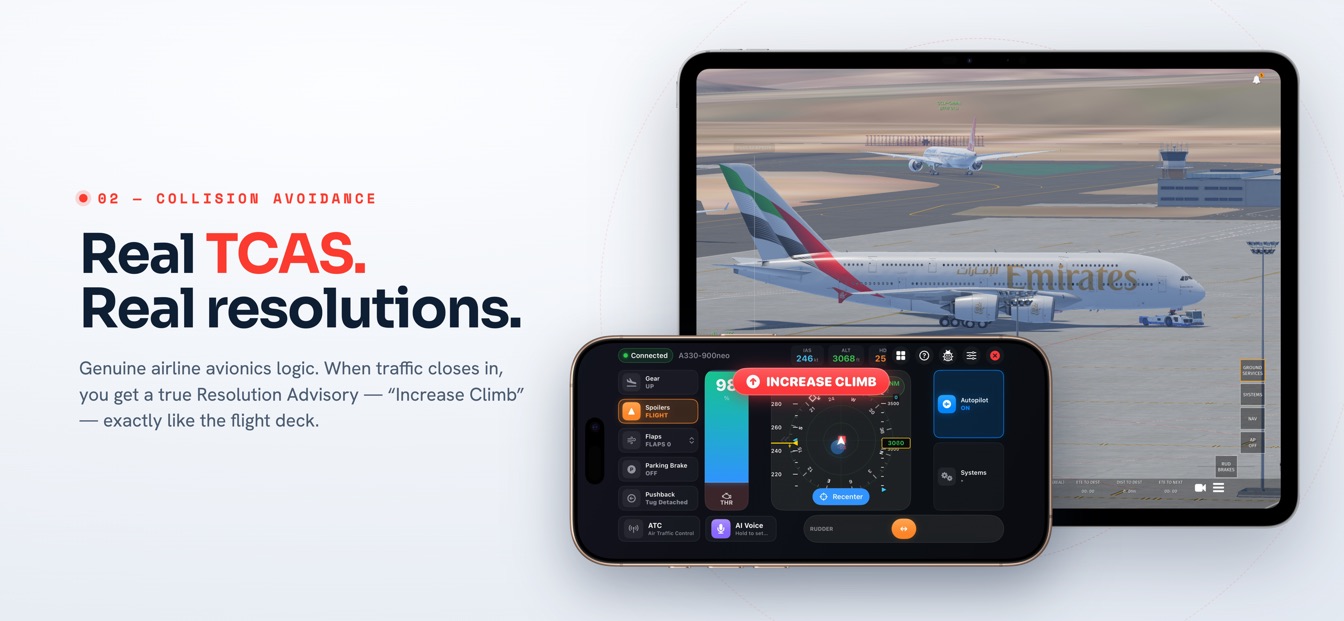
- 空中防撞(TCAS)交通顯示。Airbus 風格的交通顯示,資料來自 Infinite Flight 的即時多人交通,並附語音提示。屬於模擬器顯示輔助——並非經認證的航電。
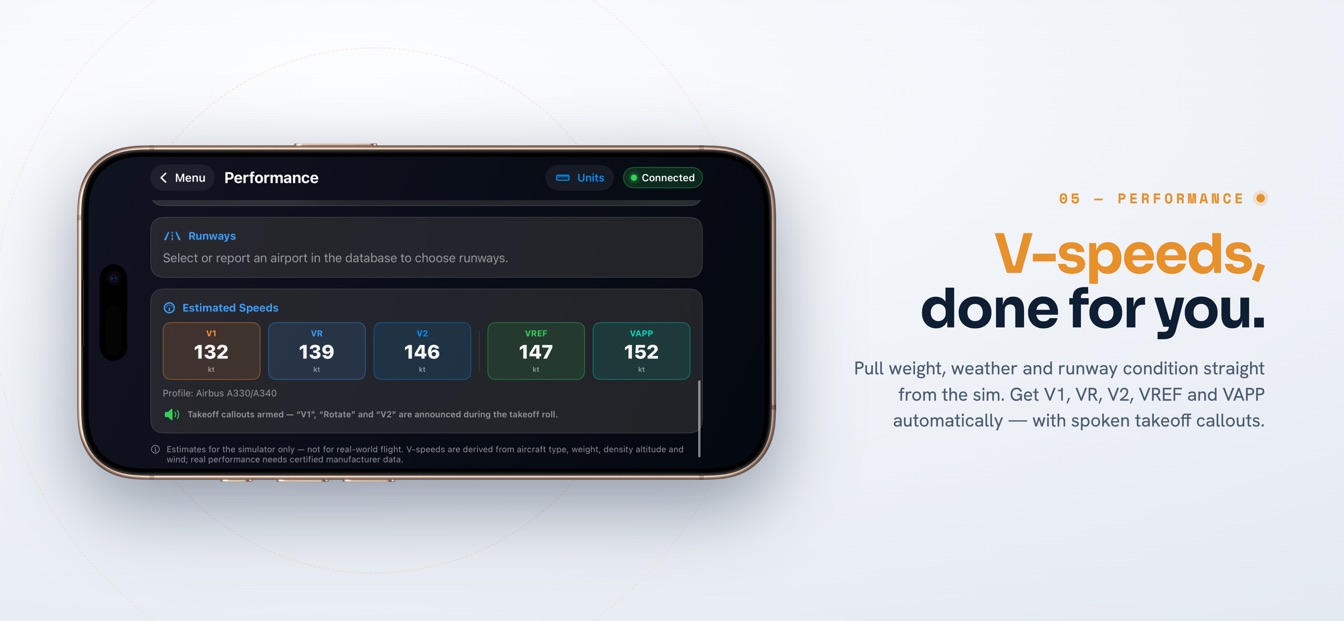
- 唱數與觸覺回饋。起飛滑行時口說的 V1、Rotate 與 V2,收放起落架時長達五秒、你雙手能感受到的沉重震動,以及滑行時隨你前進、拾取跑道接縫的地面隆隆感。
一份誠實的比較,逐條列出
這一切都沒有讓硬體過時——它改變的是取捨。以下是我們在換過去之前會想看到的比較:
| 你在權衡的重點 | 專用實體駕駛盤 | iPhone 上的 SkyYoke |
|---|---|---|
| 價格 | 一筆可觀的支出,油門座、踏板與支架通常另計 | 無需新硬體——跑在你已擁有的手機上 |
| 力回饋手感 | 真實的彈簧阻力與長實體行程 | 體感搭配觸覺回饋——檔位輕點、起落架沉重震動與地面隆隆感取代實體力 |
| 桌面空間 | 需要適合夾具的桌緣與固定的擺放空間 | 不需要——在沙發、腿上或托盤桌上都能飛 |
| 攜帶性 | 鎖在哪就留在哪 | 手機到哪就跟到哪,在同一個 Wi-Fi 上重新連線 |
| 平板模擬器相容性 | 無法連上 iPad 上的 Infinite Flight | 專為此打造——透過 Wi-Fi 使用 Infinite Flight 的 Connect API |
| 內建面板 | 按鈕與帽鍵;面板與油門座另外販售 | 油門、方向舵、自動駕駛、系統面板與空中防撞(TCAS)顯示,全在同一畫面 |
實體駕駛盤仍然勝出的地方
彈簧力是最關鍵的一項。實體操縱柱會頂回來,你的雙手學會那股壓力的方式,是體感手勢無法完全重現的;觸覺輕點只是確認事件,並不會抵抗你。長機械行程也在拉平時給了某種細膩的俯仰權威,那是某些飛行者永遠會偏愛的。而如果你用模擬器來維持真實飛行的手感,實體操縱盤的肌肉記憶正是重點所在。
所以,如果硬體還能用、你在 PC 上飛,而且桌面是你的,那就留著它。當電子零件故障、桌面消失、升級的算盤怎麼算都划不來——或你的模擬器跑在 USB 駕駛盤從來搆不著的平板上時,SkyYoke 就是那個正確的替代方案。
從裝箱的駕駛盤到重新起飛
- 同一 Wi-Fi讓 iPhone 與模擬器裝置連上同一個網路。
- 自動探索SkyYoke 會在區域網路上找到模擬器——一點即連。
- 綁定軸一次逐步引導你對應滾轉、俯仰、油門與偏航。
- 起飛傾斜、滑動、開口說話,即時操控飛機。
- 安裝並連線。把 SkyYoke 裝到一支執行 iOS 17.2 或以上的 iPhone 上,並讓你的模擬器裝置連上同一個 Wi-Fi。App 會自動探索到 Infinite Flight——一點即連。
- 綁定控制軸一次。在 Infinite Flight 的 Controllers 設定裡對應滾轉、俯仰、油門與偏航;內建的設定指南會帶你走完每一步。
- 調校並起飛。設定你的傾斜範圍、輕點重新置中,然後起飛。萬一 App 在飛行途中斷線,一項選用的失效保護會把控制交給自動駕駛,而非交給風。
常見問題
關於用 iPhone 取代實體駕駛盤的直白解答。
iPhone 真的能當作 Thrustmaster 駕駛盤的替代品嗎?+
對大多數模擬飛行玩家來說,可以。SkyYoke 讀取手機的重力向量,把手腕的滾轉轉換成副翼、把朝自己拉的動作轉換成升降舵,並以 60 Hz 透過 Wi-Fi 串流到模擬器。你放棄的是實體操縱柱的彈簧阻力,但換來同一畫面上的油門、方向舵、自動駕駛與系統面板——而且沒有任何東西需要夾、插或收納。
SkyYoke 能操控哪些飛行模擬器?+
兩款現在都支援。對 Infinite Flight,SkyYoke 透過 Infinite Flight 的 Connect API 在你的區域 Wi-Fi 上連線,並自動找到模擬器。Microsoft Flight Simulator 2024 也支援,透過 IF Yoke Bridge——一款在 MSFS 旁執行的免費 Windows 伴隨程式,會替你設定防火牆,並由手機自動探索到。
傾斜手機和轉動真正的駕駛盤相比感覺如何?+
感覺不同,但很好用。因為 SkyYoke 量測的是重力而非原始旋轉,體感駕駛盤在任何握姿下都能運作——平放在腿上,或像操縱柱那樣直立握著——而且永遠不會遇到萬向鎖。你可以決定要傾斜多少才達到滿舵(15–60 度)、輕點一下即可回中,並可逐軸調整靈敏度、死區、expo、配平與平滑度,直到手感對了為止。
當駕駛盤變成我的手機時,會失去油門和方向舵嗎?+
不會——它們和駕駛盤共用同一畫面。智慧油門桿從怠速涵蓋到滿推力,在落地滑行時替你維持反推力,並在 40 kts 以下變成比例式輪煞車。畫面底緣有一條自動回中的方向舵條,用於地面滑行轉向與側風處理。不必再另外購買或收納油門座或踏板組。
哪些人反而該保留實體駕駛盤?+
看重實體彈簧力、長操縱行程與專用硬體檔位的飛行者——尤其是用模擬器來維持真實飛行手感的人,實體操縱柱上的肌肉記憶很重要。如果你只在 PC 上飛、有固定的桌面空間,而且現有的駕駛盤仍能運作,那麼保留它是明智之選。當硬體故障、空間不夠,或你的模擬器跑在平板上時,SkyYoke 就是那個答案。
現已在 App Store 上架。
SkyYoke 現正供應——在 App Store 下載,把你的 iPhone 變成完整的飛行模擬駕駛艙。
Download on the App Store 從 Google Play 下載