Motion or touch yoke
Tilt to bank and pitch, or drag a self-centering pad — with per-axis sensitivity, dead zone and expo tuning.
SkyYoke brings its wireless yoke, throttle and control panel to MSFS 2024 — your iPhone flies the PC sim over Wi-Fi, while a free Windows companion app quietly handles every bit of the plumbing. It's available now on the App Store.
A remote yoke and throttle for Microsoft Flight Simulator is an app that turns your iPhone into wireless flight controls for MSFS 2024 running on your PC. SkyYoke does exactly that: a free Windows companion called IF Yoke Bridge links the simulator to your phone over Wi-Fi, so you fly roll, pitch, yaw, thrust, brakes and the autopilot from wherever you sit — no desk hardware required.
Microsoft Flight Simulator 2024 can paint every runway on Earth, yet the controls question hasn't moved since the nineties: either you bolt a desk's worth of plastic to your furniture, or you steer a 200-ton airliner with a mouse. A remote yoke and throttle for Microsoft Flight Simulator answers it with hardware you already own. SkyYoke makes your iPhone the control column, the thrust quadrant and the switch panel — wireless, over your own network, from the couch, the kitchen table or the armchair in front of a TV-sized external view.
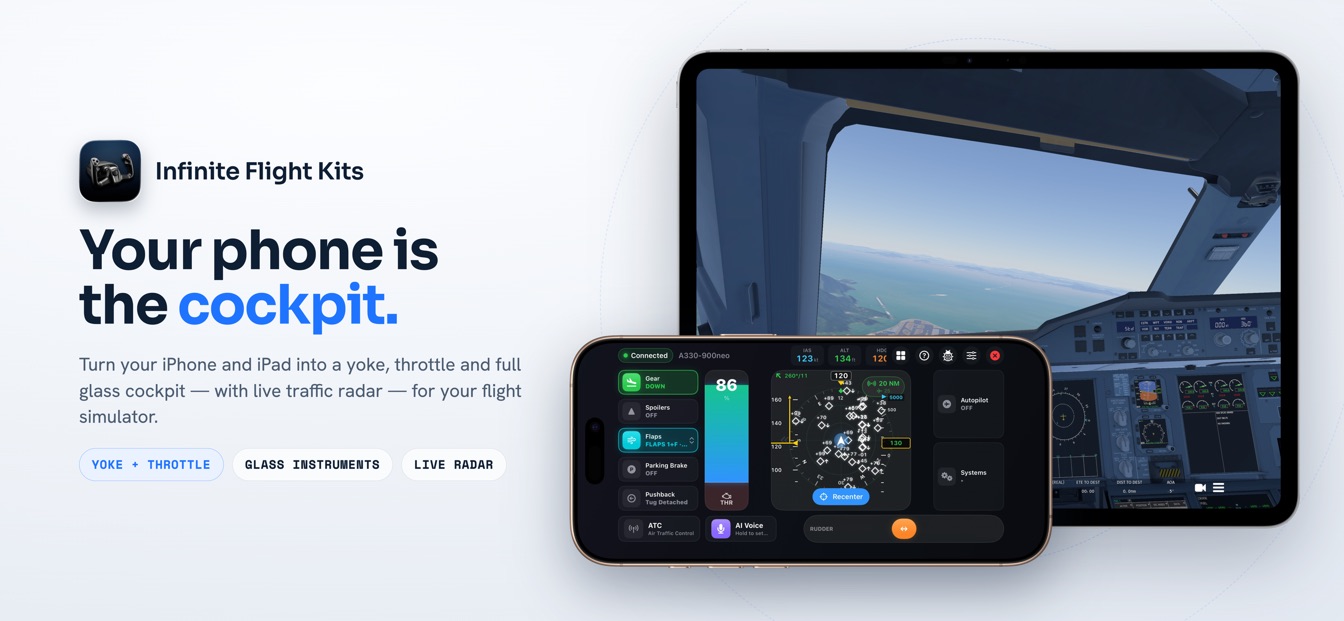
MSFS 2024 support ships in the released app, built on the same control engine that powers the remote yoke and throttle for Infinite Flight. This page walks through what the MSFS experience includes, how it connects, and where the limits are.
Getting an outside device talking to MSFS has traditionally meant editing SimConnect XML files, opening firewall ports by hand and decoding decade-old forum threads. SkyYoke folds that entire chore into IF Yoke Bridge, a small, free companion app that runs on the same Windows PC as the simulator. The bridge talks to MSFS locally, configures the necessary firewall rule on its own, and announces itself on your network so the iPhone discovers the PC automatically. No config files, no IP addresses, no port numbers — install, launch, fly.
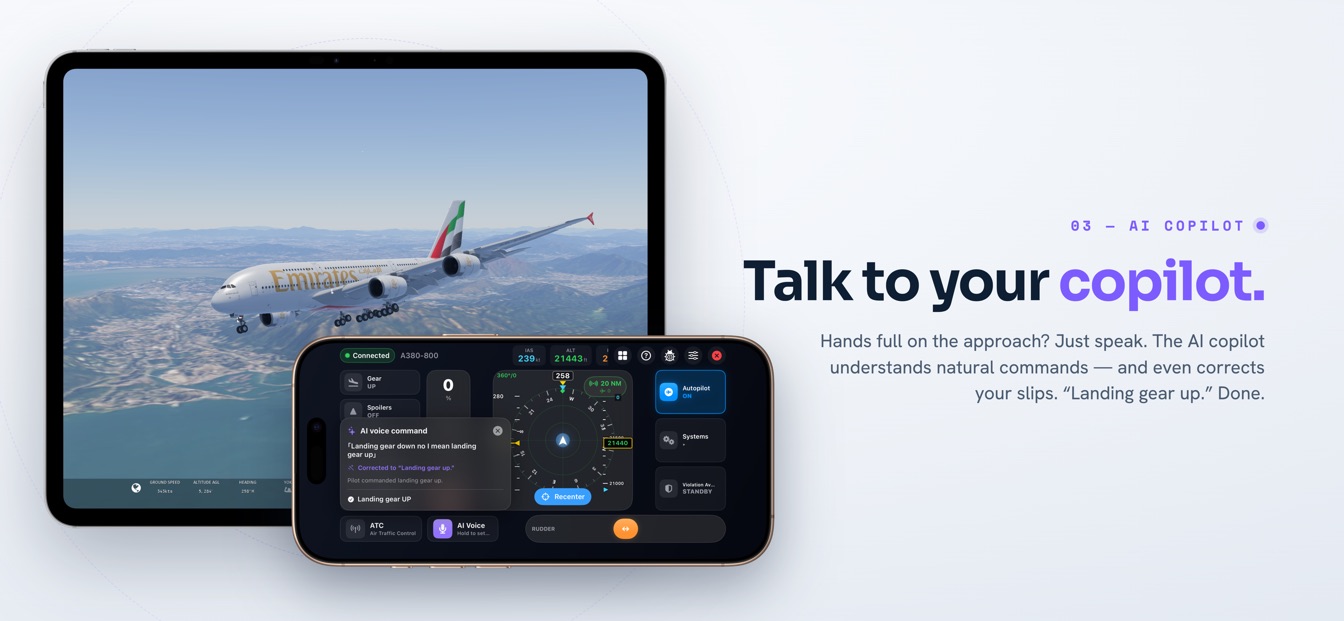
The bridge also irons out two MSFS quirks worth knowing about. First, the sim expects axis values to arrive continuously; send a throttle position once and it drifts back toward neutral. The bridge re-sends your last input on a steady cadence, so a thrust setting holds until you actually move the lever. Second, MSFS exposes a true progressive brake axis, which makes the braking zone of SkyYoke's throttle genuinely analog — a light squeeze for a smooth taxi stop, a firm pull for a rejected takeoff.
The primary controls come straight across from the existing cockpit. Roll and pitch flow from the Motion Yoke — tilt the phone like a control column — or from the on-screen Touch Joystick if you'd rather the phone stay still. Yaw rides a self-centering rudder bar along the bottom of the screen, and thrust and braking share one smart lever.
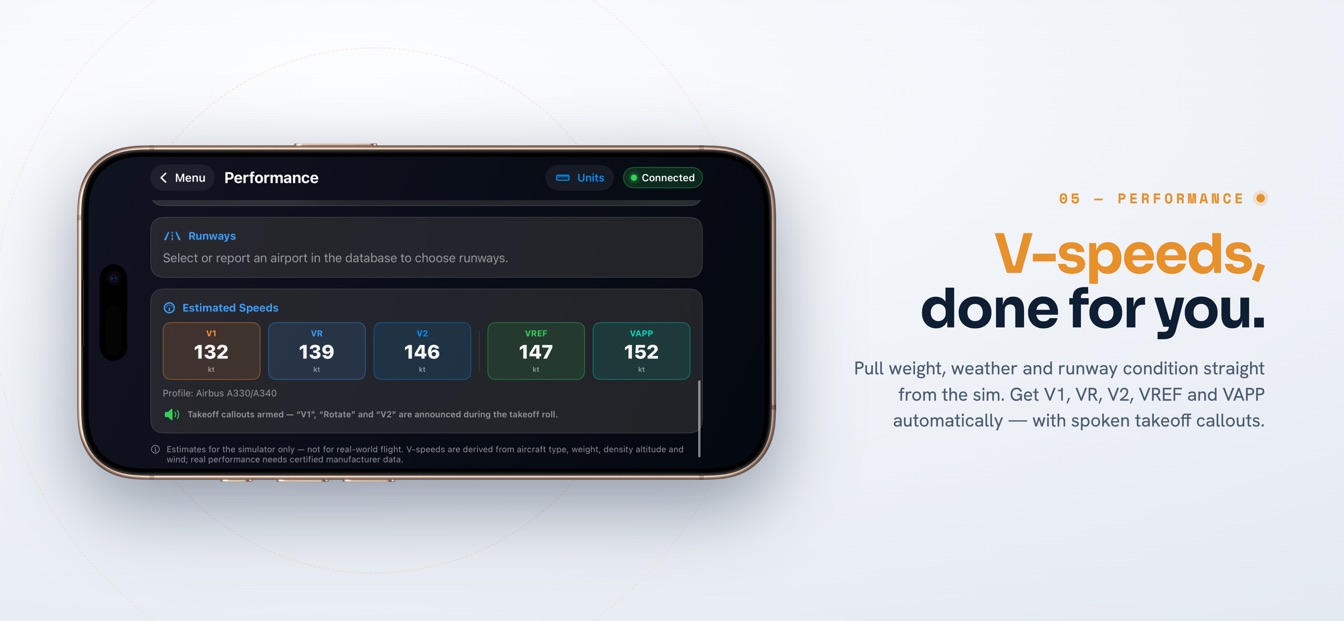
Tilt to bank and pitch, or drag a self-centering pad — with per-axis sensitivity, dead zone and expo tuning.
0–100% forward thrust, with a braking zone that maps onto MSFS's true progressive brake axis.
A 60 Hz control loop with automatic reconnection. The phone and the PC only need to share a network.
Around those axes sits the systems layer, each item one tap from the yoke:
Managed flight carries over too. The autopilot panel gives you the AP master plus four targets — altitude, vertical speed, airspeed and heading — each set on a swipe-to-scrub strip that scrolls faster the quicker you flick it. NAV mode couples the autopilot to your lateral plan, and approach mode arms the capture for the arrival. Re-dialing a crossing altitude becomes a two-second gesture on the phone instead of a hunt across a 4K cockpit for the one pixel that accepts a scroll wheel.
Third-party MSFS aircraft are famous for doing things their own way: commands a default airliner obeys can be ignored or reinterpreted by a study-level add-on. SkyYoke's answer is per-aircraft presets that tailor the control mapping to the airframe you load.
| Generic | A standard mapping that fits the stock fleet and most add-ons out of the box. |
|---|---|
| iniBuilds A320 | Airbus-tailored commands plus the gated thrust-detent quadrant. |
| iniBuilds A350 | The same Airbus treatment scaled to the long-hauler, detents included. |
| Fenix A320 | A custom thrust path for levers that ignore standard commands, with cockpit-lever movement via the free MobiFlight module. |
Pick any Airbus preset and the smart throttle reshapes into a gated quadrant — REV FULL, REV, IDLE, CLIMB, FLX·MCT and TOGA — with a haptic tick at every gate crossing, the same detent feel SkyYoke already gives Airbus types in Infinite Flight. Setting FLX for takeoff or coming back to CLIMB at thrust reduction works by feel, eyes on the runway rather than on the phone.
The Fenix A320 earns its own row because it needs one: its thrust levers ignore standard SimConnect throttle commands entirely. SkyYoke drives thrust through the method that actually works on the Fenix, and when the free MobiFlight WASM module is installed it writes the lever variable directly, so the levers in the virtual cockpit track your phone's quadrant. If that's your aircraft, the Fenix A320 remote joystick page goes deeper.
Some SkyYoke features lean on data and hooks that only Infinite Flight provides, so they will not appear in the MSFS cockpit:
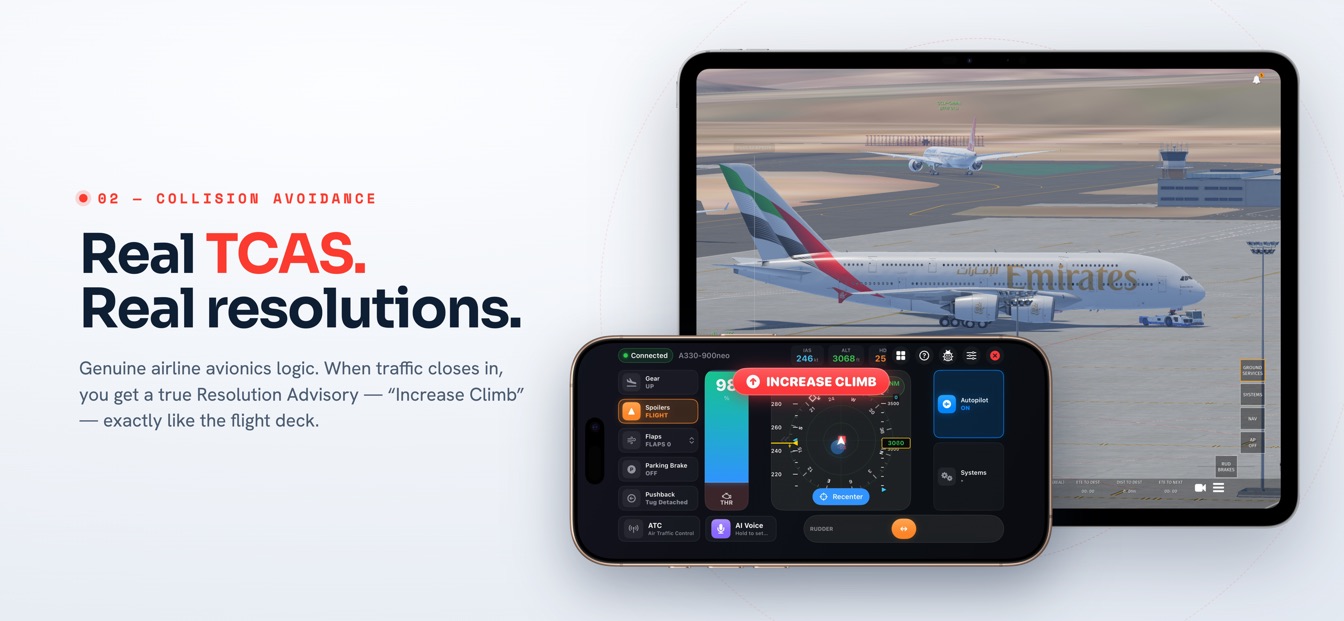
If you want all of it today, the full cockpit described on control Infinite Flight remotely is where SkyYoke already does everything at once.
Your first flight is measured in minutes, not an evening of configuration:
Ready to fly? Download SkyYoke on the App Store / Google Play — it's free, and MSFS support is live today.
What simmers ask about flying MSFS 2024 from an iPhone.
It is an app that turns your iPhone into wireless flight controls for Microsoft Flight Simulator running on a PC. SkyYoke does this for MSFS 2024: the phone becomes your yoke, throttle, rudder and autopilot panel, connected over your home Wi-Fi through a free Windows companion app called IF Yoke Bridge — with no extra hardware on the desk.
IF Yoke Bridge is a small, free Windows companion app that will run alongside Microsoft Flight Simulator 2024 on your PC. It talks to the simulator locally, sets up the required firewall rule automatically, and announces itself on your network so the iPhone finds it on its own. You will not edit configuration files or type IP addresses — install it, launch it, and SkyYoke discovers it.
Four presets are planned: a generic profile that suits the stock fleet and most add-ons, plus dedicated mappings for the iniBuilds A320, the iniBuilds A350 and the Fenix A320. Each preset tailors how SkyYoke sends commands so that aircraft responds correctly, and the Airbus presets add the gated thrust-detent quadrant with a haptic tick at every gate.
Yes, with one free add-on. The Fenix A320's levers ignore standard SimConnect throttle commands, so SkyYoke drives engine thrust through the method that works on that aircraft regardless. When the free MobiFlight WASM module is installed, SkyYoke also writes the lever variable directly, so the thrust levers in the virtual cockpit move in step with your phone.
Yes. MSFS 2024 support ships in the released app, so everything this page describes works today. Infinite Flight is also fully supported, with SkyYoke's complete feature set from the motion yoke to TCAS and the performance planner. Download it on the App Store / Google Play to fly either simulator.
SkyYoke is available now — download it on the App Store and turn your iPhone into a full flight-sim cockpit.
Download on the App Store Get it on Google Play