Troubleshooting
Fixes for SkyYoke connection problems, controls that do not respond, stuck brakes, reverse thrust, lag and the reconnecting screen, plus the built-in connection check-up.
Most problems come from one of three things: the two devices cannot see each other, an axis is not bound in Infinite Flight, or the Wi-Fi is slow. Start with the check-up below.
Run the connection check-up#
SkyYoke can test your setup and suggest fixes. Open it from Trouble connecting? Test my connection on the connection screen, or from Settings → Test my connection.
It measures the delay to the simulator, checks your network type, whether a VPN is on and how capable the phone is, then gives one of four results:
| Result | Meaning |
|---|---|
| Your setup looks great | Ready for a smooth, stable link |
| A few things could be better | It works; the suggested fixes make it more reliable |
| Your connection needs attention | This setup often causes drop-outs |
| Couldn't fully check your setup | Connect to the simulator first, then run it again |
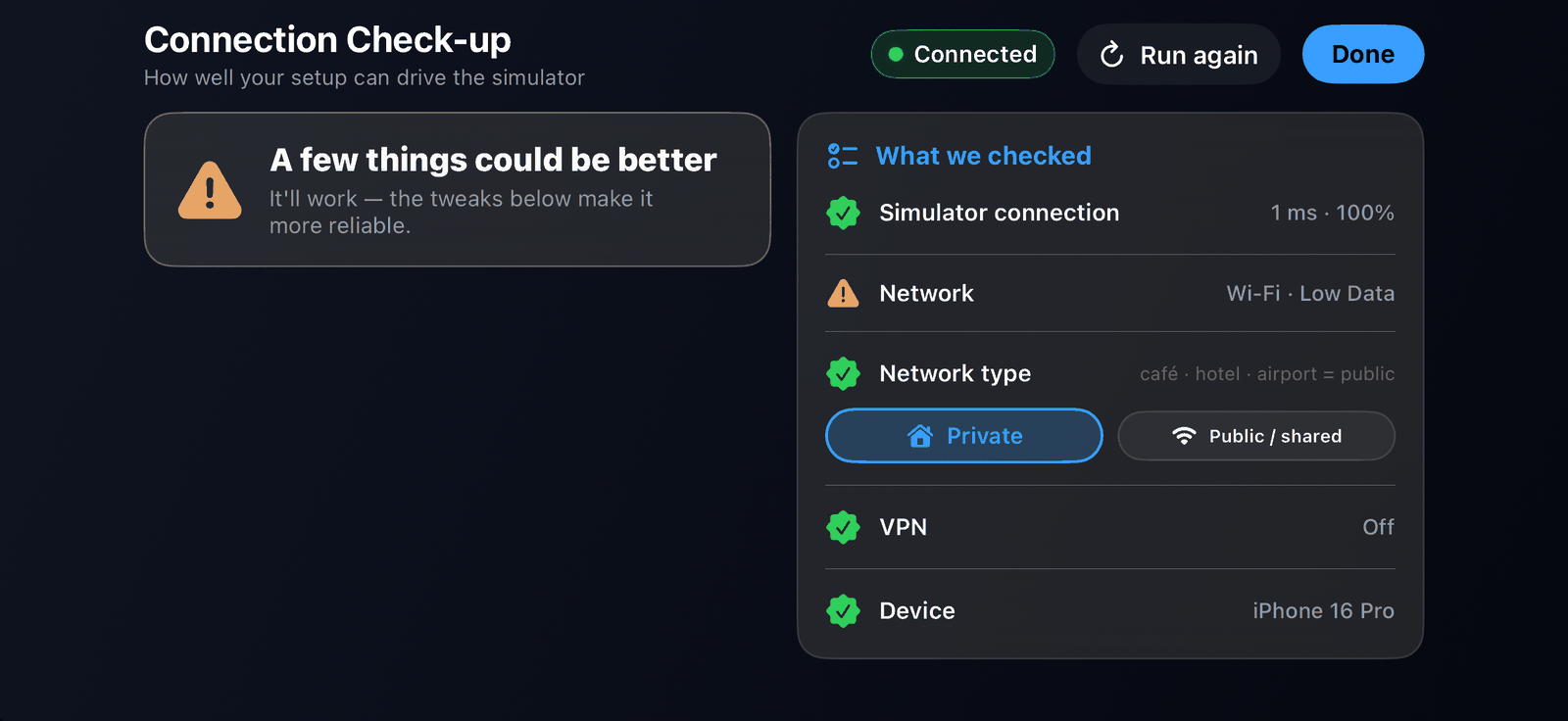
Typical fixes it suggests: join the simulator's Wi-Fi instead of cellular, use your Personal Hotspot, turn off a VPN or Private Relay, move closer to the router, or use a Wi-Fi 5 or 6 router.
SkyYoke cannot find Infinite Flight#
- Turn on Enable Infinite Flight Connect in Infinite Flight's Settings → General.
- Put both devices on the same Wi-Fi network. Guest, hotel, airport and some office networks keep devices apart; use the iPhone's Personal Hotspot instead.
- Allow Local Network for SkyYoke in Settings → Privacy & Security → Local Network on the iPhone.
- Turn off VPN and iCloud Private Relay.
- Connect by IP address.
The controls move in SkyYoke but the aircraft does not#
The axis is not bound in Infinite Flight. Open the Setup Guide and repeat the binding step for that control. If SkyYoke shows Re-configure your axes after an update, run the guide again and confirm.
The wheel brakes stay on at low speed#
In Infinite Flight's controller settings, unbind Axis 4 → Wheel Brakes. SkyYoke now applies the brakes through Infinite Flight's brake button, and an axis left bound holds about 50% brake.
Reverse thrust does not work#
- Bind Reverse Thrust to button 0 in step 7 of the Setup Guide.
- Reverse only engages on the ground with the throttle at idle. Below 40 kt the throttle's red zone applies the wheel brakes instead. See Throttle, reverse thrust and brakes.
Pushing the throttle to full gives idle#
Turn on Settings → Reverse throttle direction. Also check you are not on the free version's 85% cap; see Free and Pro.
The aircraft wobbles or reacts late#
- Run the connection check-up and follow its fixes.
- Lower Sensitivity or raise Dead zone for pitch and roll in Settings.
- Tap Recenter while holding the phone in your neutral position.
"Connection lost"#
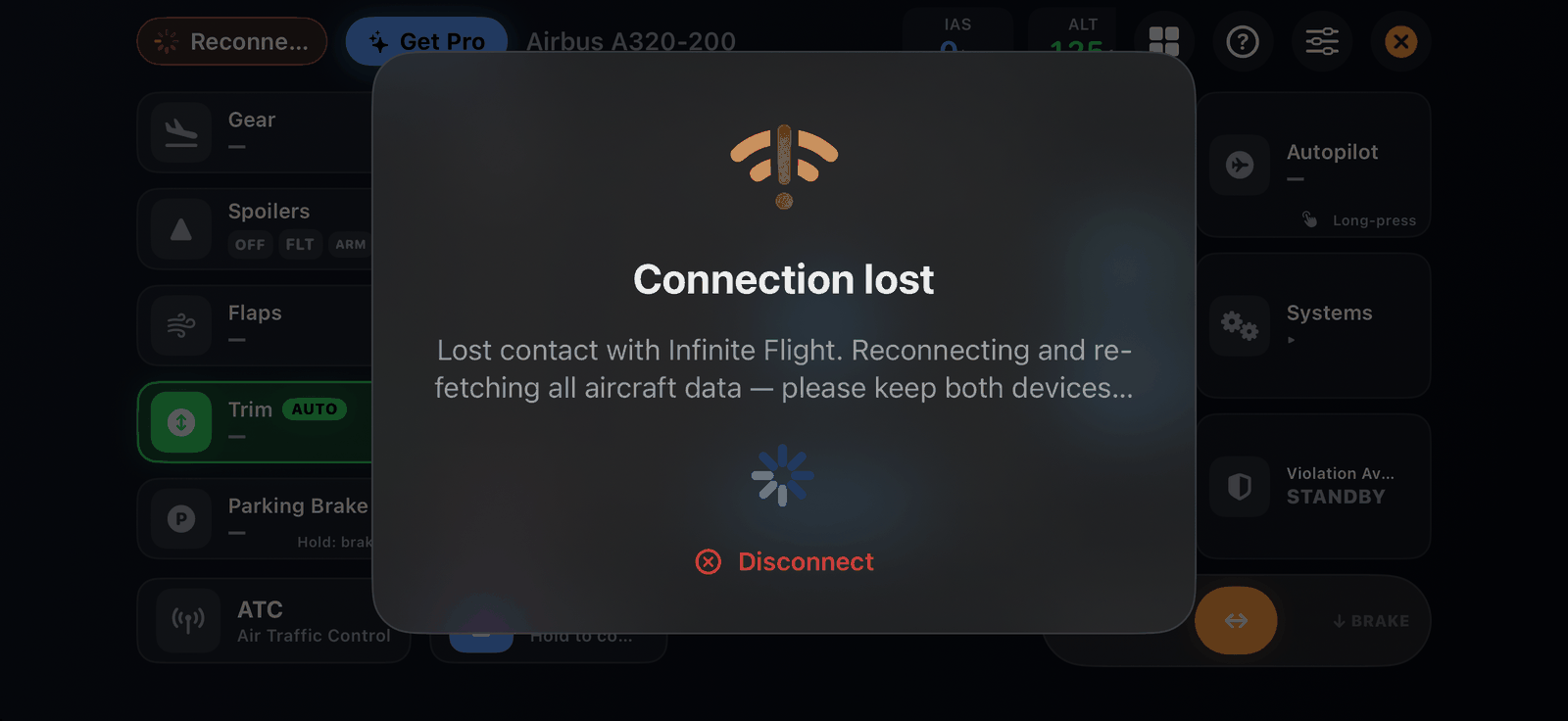
SkyYoke lost contact with Infinite Flight, often because the iPad slept, Wi-Fi dropped or Infinite Flight was closed. It keeps trying for about a minute and reloads the aircraft when it reconnects. Tap Disconnect to stop and connect again from the list.
SkyYoke switched aircraft by itself#
When you start a new flight in a different aircraft, SkyYoke detects it and reconnects so every control matches the new aircraft. This is expected.
Still stuck?#
Contact the developer from the connection screen: the Discord, website and email icons sit in its top-left corner.