Quick start
Fly Infinite Flight with SkyYoke in five steps: turn on Infinite Flight Connect, join the same Wi-Fi, connect, bind the axes and take off.
You can be flying in about ten minutes. You need an iPhone with SkyYoke installed and a device running Infinite Flight (usually an iPad) on the same Wi-Fi network.
- On the device running Infinite Flight, open Settings → General and turn on Enable Infinite Flight Connect.
- Put both devices on the same Wi-Fi network, or join the Infinite Flight device to your iPhone's Personal Hotspot.
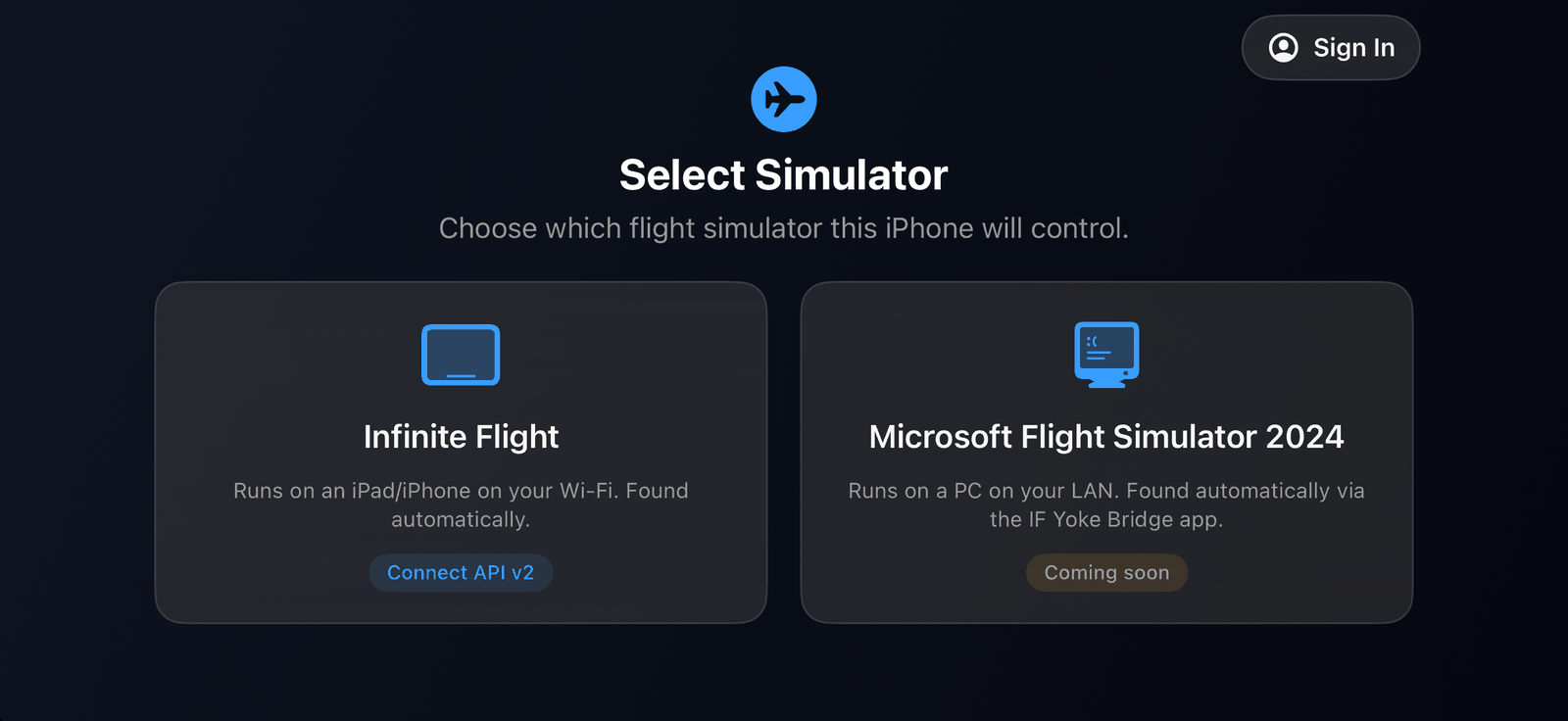
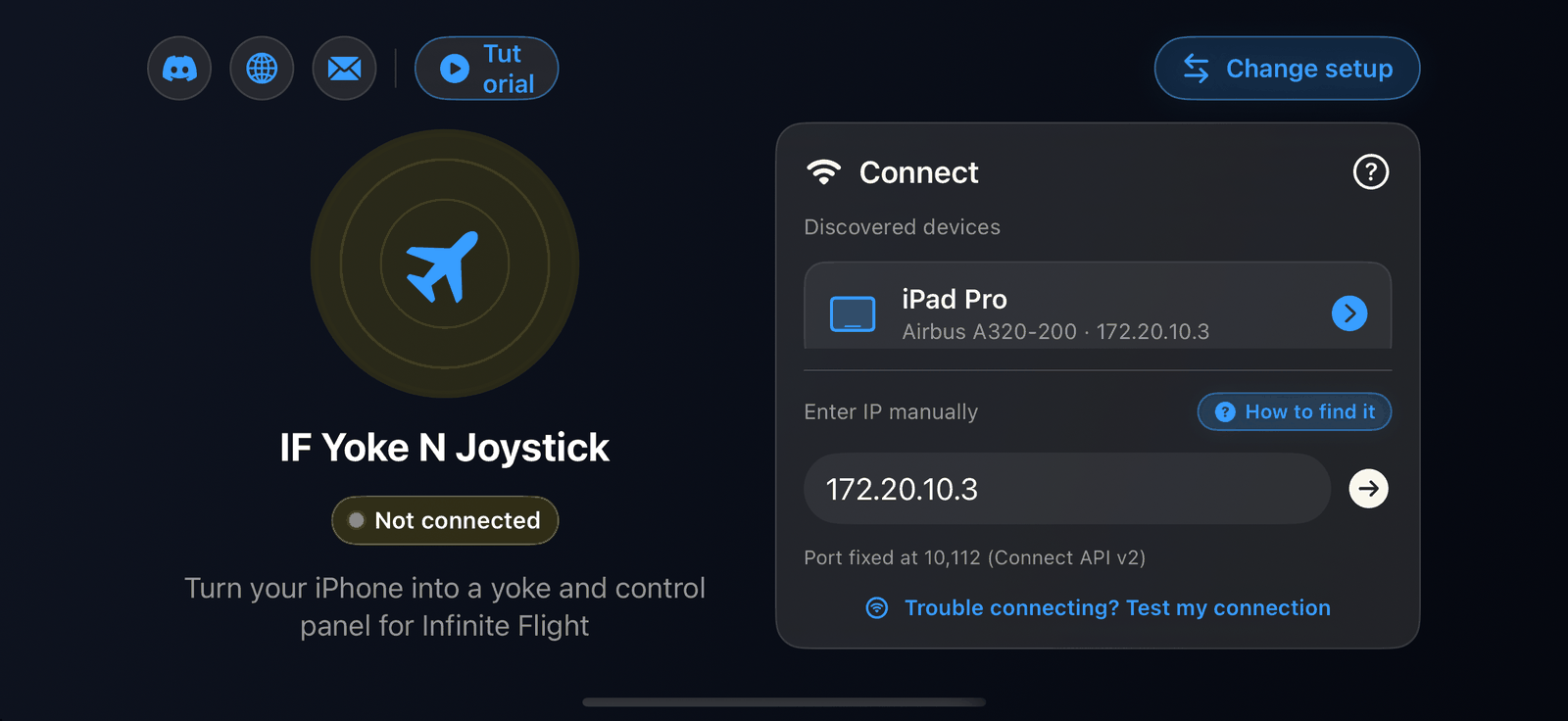
- Open SkyYoke, choose Infinite Flight, and tap your device in the Discovered devices list. If it does not appear, type its IP address instead.
- Follow the Setup Guide to bind Roll, Pitch, Throttle and Rudder in Infinite Flight. This takes a minute and is needed only once.
- Spawn at a gate or runway in Infinite Flight, hold the iPhone in landscape like a yoke and fly.
Step by step#
1. Turn on Infinite Flight Connect#
Infinite Flight only accepts external controllers when Connect is on. Details and screenshots are in Connect to Infinite Flight.
2. Connect#
SkyYoke searches the network automatically. Your iPad appears under Discovered devices with the aircraft it is flying. Tap it to connect. When iOS asks to find devices on your local network, tap Allow; without it SkyYoke cannot see Infinite Flight.
3. Bind your axes#
The first time you connect, the Setup Guide opens on its own. For each control it asks you to pick the function in Infinite Flight's controller settings, then move the matching bar in SkyYoke so Infinite Flight can bind it. Buttons such as gear, flaps and autopilot need no setup.
4. Fly#
Hold the phone in landscape with both hands. Tilt left and right to roll, tilt toward and away from you to pitch, and slide the throttle lever on the right. Tap Recenter whenever you want the current position to count as neutral. The Cockpit screen tour explains every button.
Free version limits
The free version is fully usable on the ground and for short hops, but thrust stops at 85% and a subscribe screen appears after 60 seconds above 500 ft. See Free and Pro.
Next steps#
- Learn the throttle, reverse thrust and brakes.
- Set up the autopilot for a hands-off cruise.
- Run the checklists before takeoff.