Motion Yoke and Touch Joystick
Fly with SkyYoke by tilting the iPhone like a yoke or with an on-screen joystick, recenter the yoke and control the camera with swipes.
SkyYoke has two ways to fly. Choose one in Settings → Control mode → Input method.
| Mode | How it works | Best for |
|---|---|---|
| Motion Yoke (default) | Tilt the phone. Roll left or right to bank, tilt toward or away from you to pitch. | Feeling like a real yoke |
| Touch Joystick | Drag the on-screen stick with your thumb; it springs back to centre. | Flying with the phone on a table or stand |
Motion Yoke#
Hold the phone in landscape with both hands, screen facing you, like a yoke. SkyYoke reads the phone's tilt 60 times a second.
- Recenter: tap it while holding the phone at your comfortable neutral angle. Do this before takeoff and whenever you change how you sit.
- Tilt range (15° to 60°, default 35°) sets how far you tilt for full control. A smaller range is more sensitive.
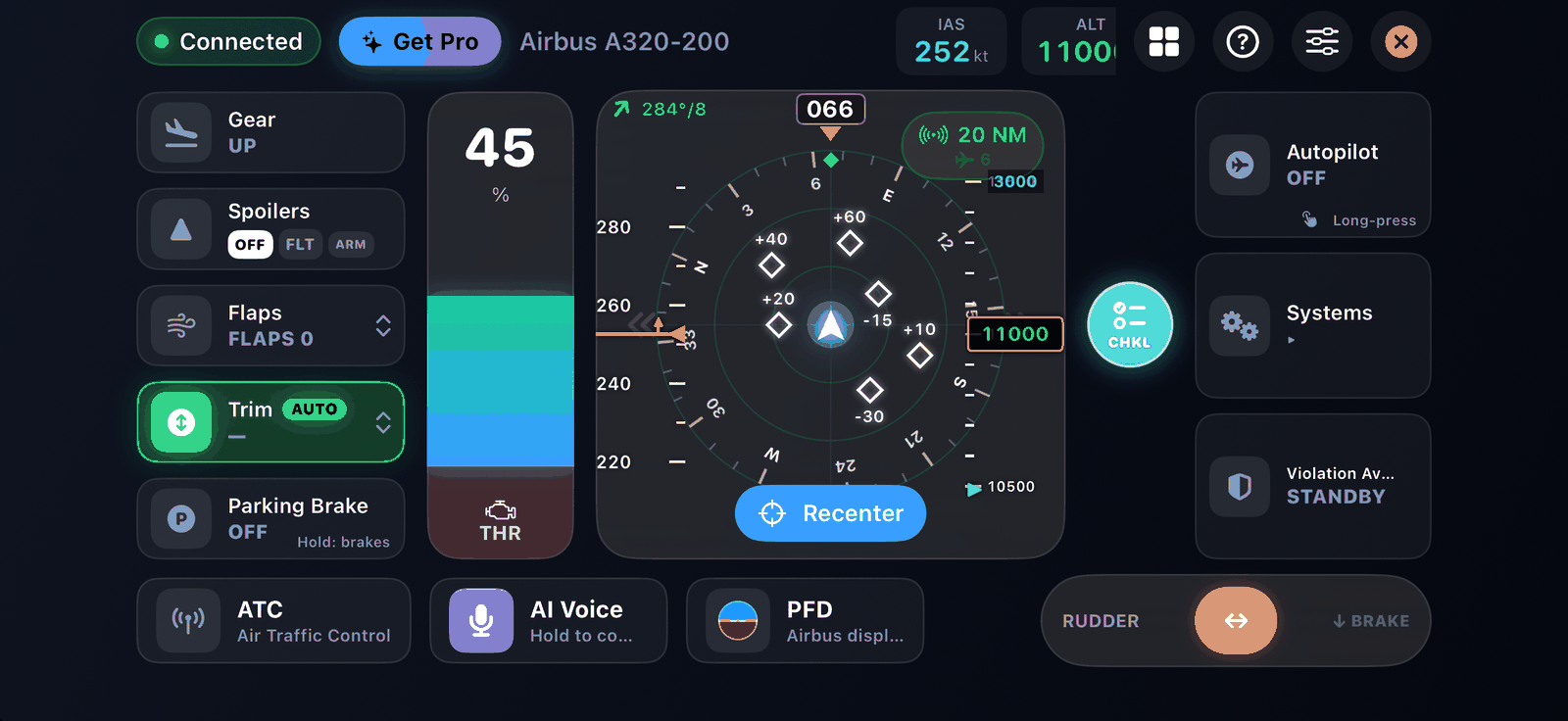
- The pad in the middle shows the traffic radar or a flight display.
Camera control#
The Motion Yoke pad also moves Infinite Flight's camera:
- Swipe across the pad to look around.
- Tap the left or right side to switch camera views.
- Press and hold to jump back to the cockpit view.
This needs the camera hat bound in step 8 of the Setup Guide. You can change camera sensitivity and invert either direction in Settings.
Touch Joystick#
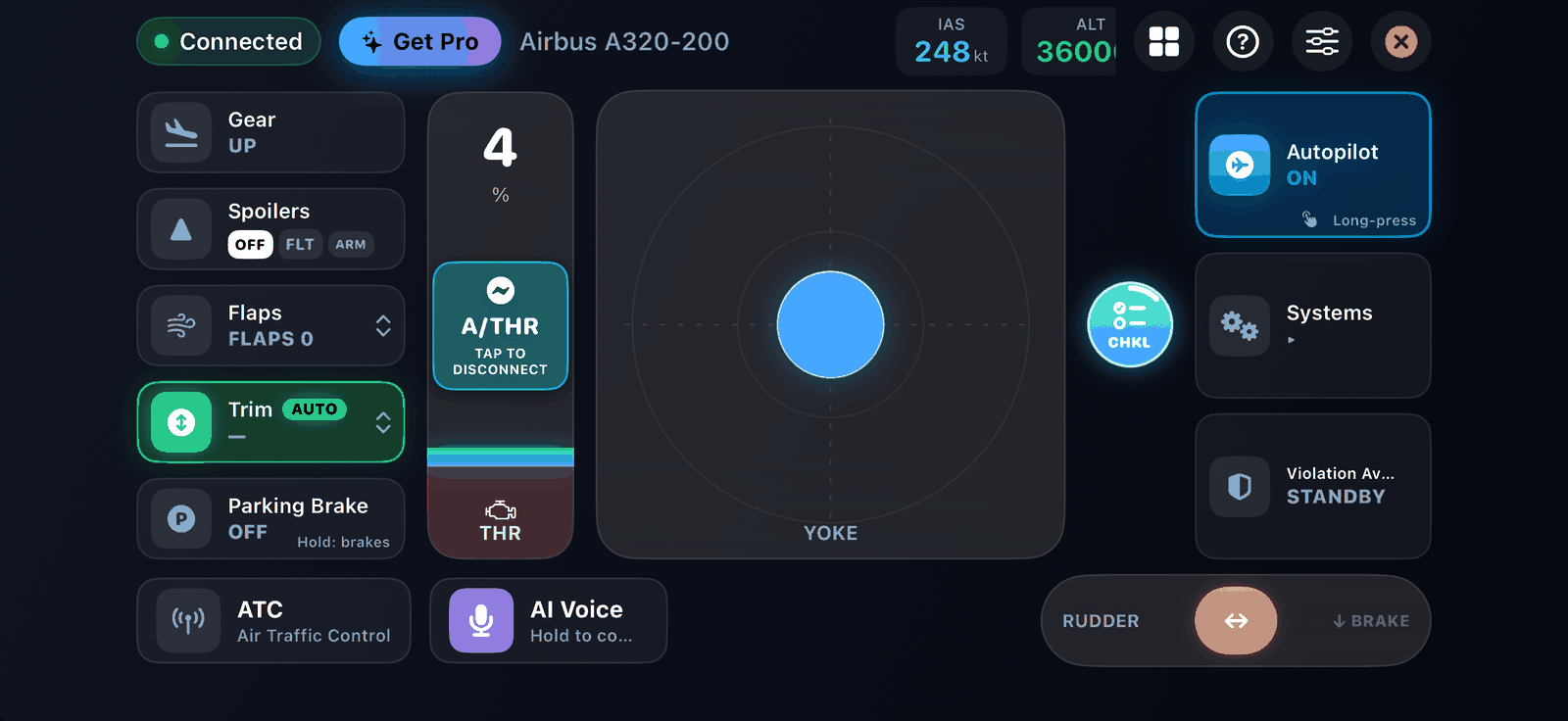
The stick sits in the middle of the screen. Drag it to roll and pitch; release it to centre the controls.
Fine-tuning the feel#
Each axis (pitch, roll and yaw) has its own settings:
| Setting | Range | Default | Effect |
|---|---|---|---|
| Sensitivity | 0.2 to 2.0 | 1.0 | How much control a given tilt or drag gives |
| Dead zone | 0 to 0.3 | 0.05 (pitch, roll), 0.08 (yaw) | Small movements near centre are ignored |
| Expo curve | 0 to 1 | 0.35 (pitch, roll), 0.20 (yaw) | Softer near centre, full authority at the ends |
| Invert direction | on or off | off | Reverses the axis |
See Settings.
Rudder#
The rudder slider sits along the bottom of the cockpit screen. Slide left or right for yaw; it returns to centre when you let go. Use it for crosswind landings and steering on the ground at low speed.
Use a game controller instead
You can fly with an Xbox, DualSense or Backbone controller and keep the phone as the cockpit display. See Game controllers.