Connect to Infinite Flight
How to turn on Infinite Flight Connect, put both devices on the same network and connect SkyYoke automatically or by IP address.
SkyYoke connects to Infinite Flight through Infinite Flight Connect, the simulator's official feature for external controllers. Once Connect is on and both devices share a network, SkyYoke finds Infinite Flight by itself.
- On the iPad or iPhone running Infinite Flight, open Infinite Flight → Settings → General and switch on Enable Infinite Flight Connect.
- Connect both devices to the same Wi-Fi network. If there is no shared Wi-Fi, turn on your iPhone's Personal Hotspot and join the Infinite Flight device to it.
- Open SkyYoke, tap Infinite Flight on the Select Simulator screen, and allow Local Network access when iOS asks.
- Tap your device in the Discovered devices list. SkyYoke connects and loads the aircraft.
- If this is your first time, finish the Setup Guide that opens next.
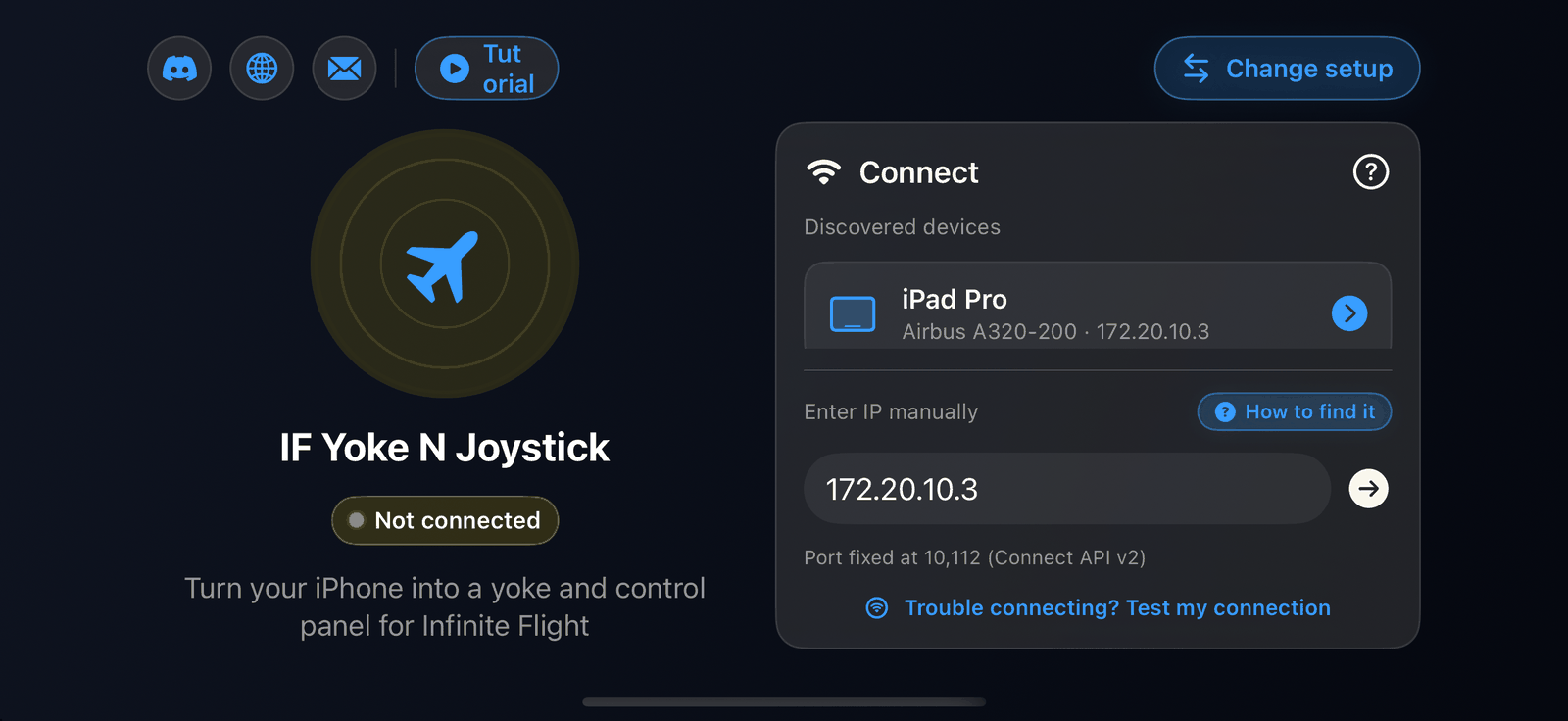
The connection screen#
| Part | What it does |
|---|---|
| Discovered devices | Every device on your network that has Infinite Flight Connect on, with the aircraft it is flying. Tap one to connect. |
| Enter IP manually | Type the device's IP address if it is not discovered. The port is fixed at 10112. |
| How to find it | Shows where to read the IP address on the Infinite Flight device. See Find your iPad's IP address. |
| Trouble connecting? Test my connection | Runs the connection check-up. |
| ? | Opens the Setup Guide. |
| Tutorial | Opens the setup tutorial and demo videos. |
| Change simulator | Returns to the Select Simulator screen. |
SkyYoke remembers the last device you used and fills it in next time.
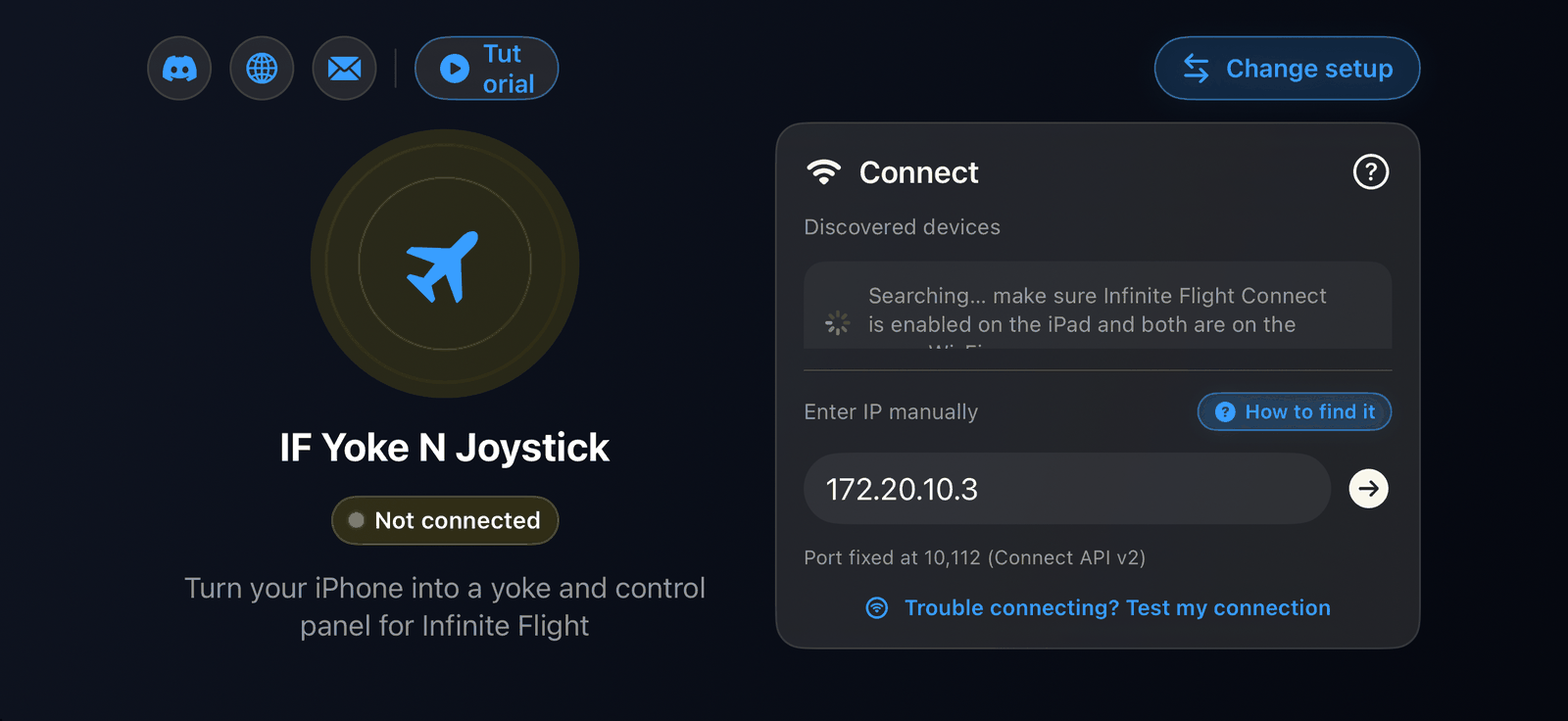
When the list stays empty#
While SkyYoke is searching, the list reads "Searching… make sure Infinite Flight Connect is enabled on the iPad and both are on the same Wi-Fi." If nothing appears after a few seconds:
- Check that Enable Infinite Flight Connect is still on. Infinite Flight must be open on that device.
- Check that both devices show the same Wi-Fi network name.
- Turn off any VPN or iCloud Private Relay on the iPhone.
- Make sure SkyYoke has Local Network permission in the iPhone's Settings → Privacy & Security → Local Network.
- Some public or office networks block devices from seeing each other. Use your iPhone's Personal Hotspot instead.
- As a last resort, enter the IP address manually.
More fixes are in Troubleshooting.
After you connect#
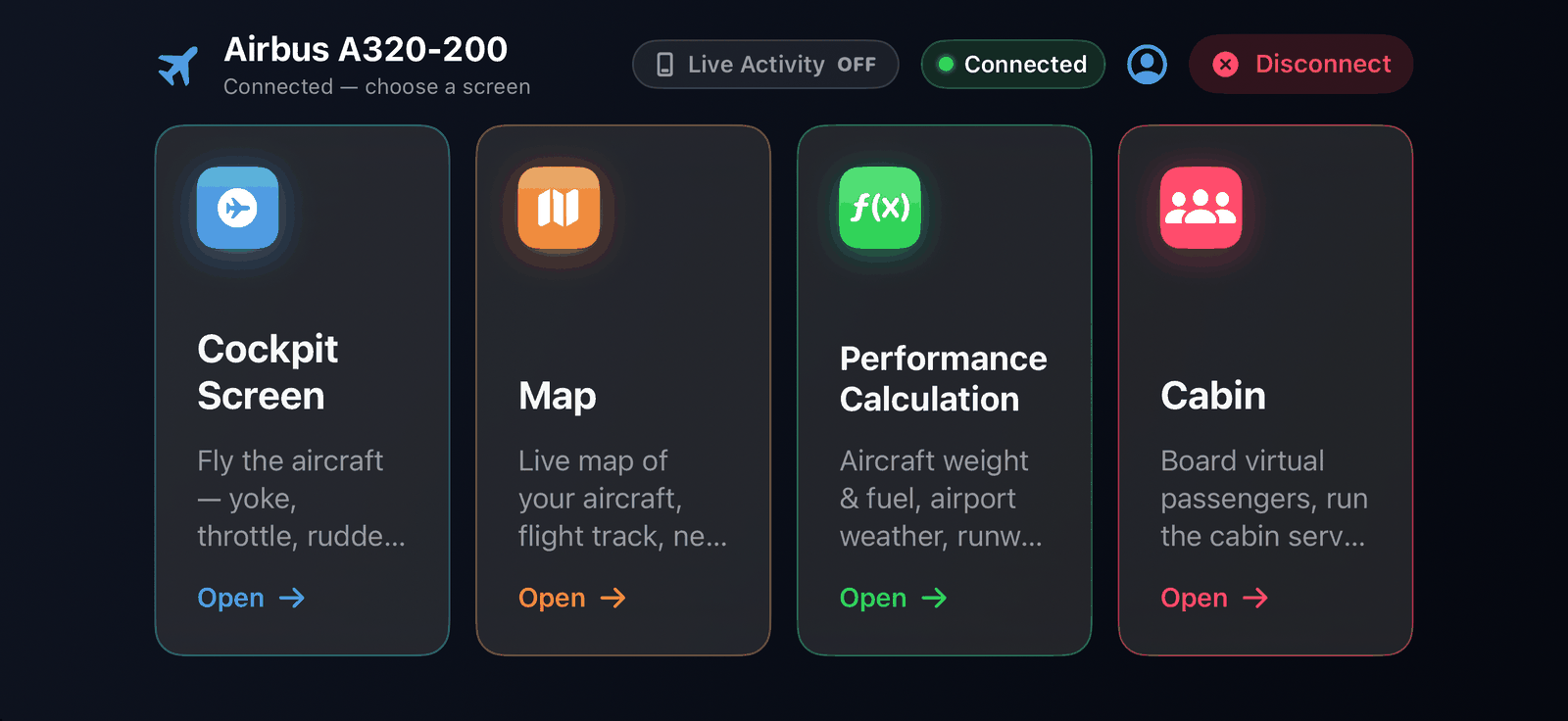
SkyYoke reads the aircraft you are flying and opens the Flight Menu, which leads to the cockpit screen, the map, the performance calculator and the cabin. If you change aircraft in Infinite Flight, SkyYoke notices the new flight and reconnects by itself. You can also use Settings → Refresh aircraft data.
If the connection drops, a Connection lost screen appears and SkyYoke keeps retrying for about a minute while it reloads the aircraft data. Tap Disconnect to stop. If Infinite Flight is paused, a Paused screen offers Resume flight.